

Bidding rule
The Bidding rule adjusts bids based on target performance and configured limits. It reads a target’s performance over the Data Window, decides a new bid, and clamps that decision inside limits you control.
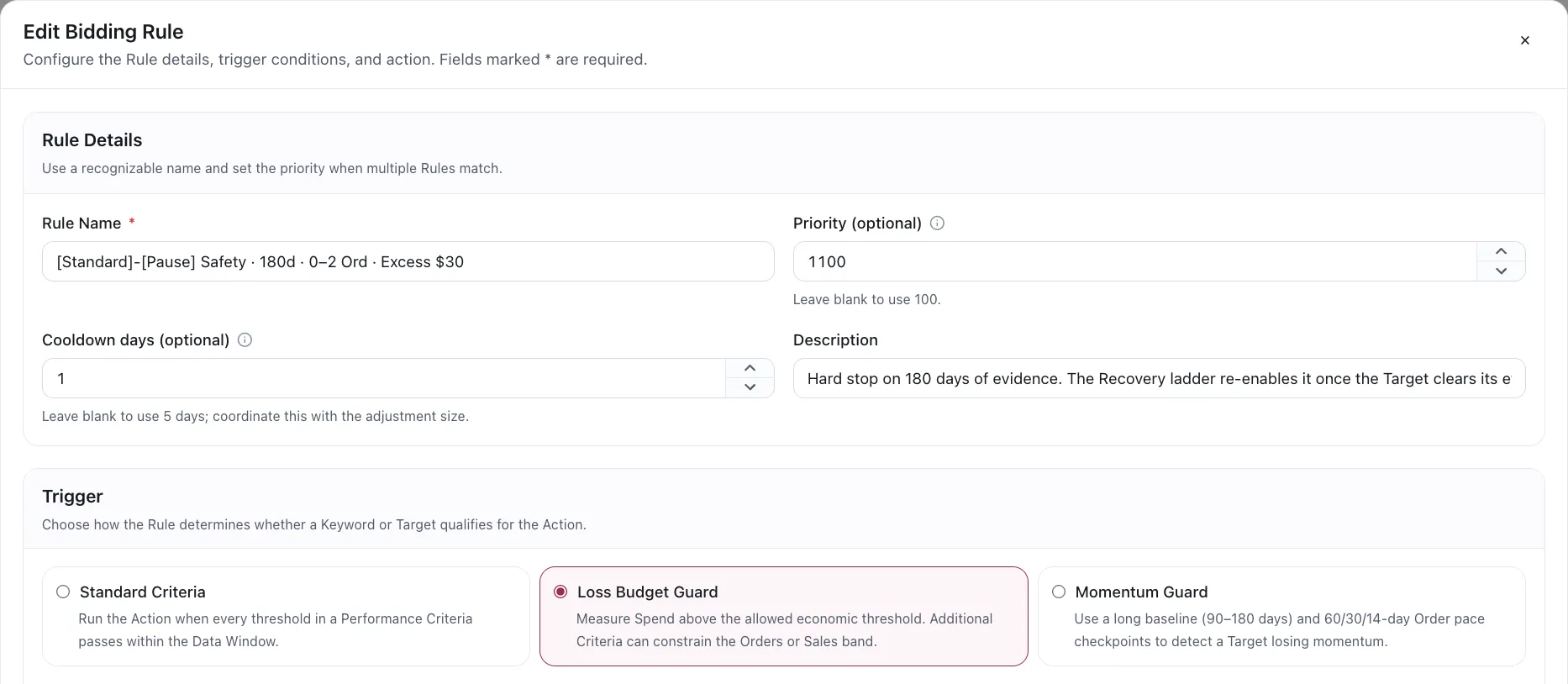
The rule editor. Priority defaults to 100 and cooldown to 5 days when left blank.
Choosing an action
Section titled “Choosing an action”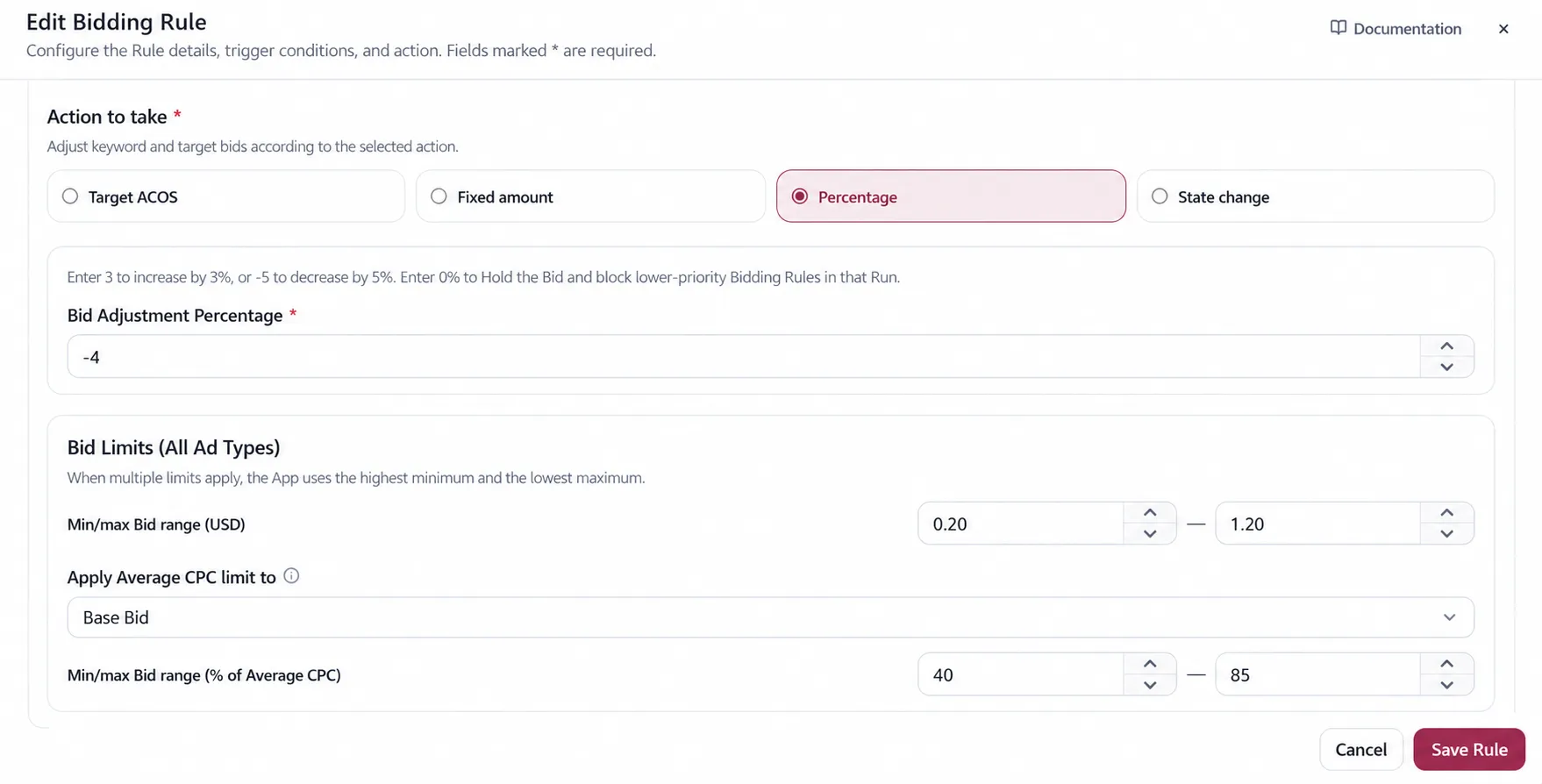
| Action | What it does |
|---|---|
| Target ACOS | Calculates a bid from the target’s own economics |
| Fixed amount | Moves the bid by a currency amount, up or down |
| Percentage | Moves the bid by a percentage. 0 is a deliberate Hold |
| State change | Enables or pauses the target instead of bidding |
Hold is worth knowing about: a percentage action of 0 keeps the bid and stops lower-priority
rules touching it in that run.
Older rules may still display an absolute Set bid action. It is preserved so existing rules can be read, but it is not one of the four current actions. Choose a current action before saving a legacy rule.
Limit which targets the rule can evaluate
Section titled “Limit which targets the rule can evaluate”Rule Applicability is checked before Criteria. It lets one Bidding rule apply only to the delivery envelope it was designed for:
| Filter | Choices |
|---|---|
| Ad Product | All, Sponsored Products and Brands, Sponsored Products, Sponsored Brands, or Sponsored Display |
| Billing Basis | Any, cost per click (CPC), or viewable cost per thousand impressions (vCPM) |
| Target Kind | Any, Keyword, Product Target, or Audience Target |
Use these filters when a formula or boundary only makes sense for a particular product or billing basis. The App does not infer an Ad Product from a campaign name. A target outside the selected applicability is skipped even when its performance thresholds would pass.
For Sponsored Display, a missing Target Kind cannot safely be guessed. The target is skipped rather than treated as a Product Target or Audience Target arbitrarily.
Target and Campaign Criteria
Section titled “Target and Campaign Criteria”The target’s Criteria and optional Campaign Criteria answer different questions. Target Criteria reads the Keyword or Target being evaluated. Campaign Criteria reads the total performance of the Campaign containing it. When both are selected, both must pass.
This lets a rule say, for example: reduce a high-ACOS target only when its Campaign is also over a minimum spend. A Campaign Criteria does not replace the target Criteria, and its metrics are not used to calculate a Target ACOS bid.
How the new bid is calculated
Section titled “How the new bid is calculated”The order is fixed:
- Calculate the action’s target bid.
- Apply the ACOS direction gate. This may hold the target at the current bid.
- Apply the per-run movement cap.
- Clamp the result to the boundaries you set. These boundaries win over the per-run cap.
- Apply Amazon’s technical bid limits. These are unconditional.
This order matters. A rule with an 8% maximum decrease can still send a 15% decrease when your Max Bid is already 15% below the current bid. The per-run cap limits the speed of a move; a boundary limits the result you have authorised.
Target ACOS
Section titled “Target ACOS”Target ACOS is the action most rules use: the bid is priced from what the target actually earns per click, rather than from a number you guessed.
| Pricing method | Target bid |
|---|---|
| Revenue per click (default) | Sales ÷ Clicks × Target ACOS |
| Selling price × conversion rate | Selling price × (Orders ÷ Clicks) × Target ACOS |
| vCPM for Sponsored Display | Sales ÷ Viewable impressions × 1,000 × Target ACOS |
These formulas use the metrics in the Data Window; they do not use the current bid. Re-running a rule against the same unchanged window therefore produces the same target, not another compounded increase or decrease. From the second run onward there may simply be no change to make.
Enter it as a whole number: 30 means 30%, not 0.30.
Enter the Target ACOS on the rule. It is a required field on this action and is not inherited from the product’s economics. What the product’s economics do contribute is the Max bid ceiling the result is clamped to — see How the economics resolve.
Glide: approaching the target instead of jumping to it
Section titled “Glide: approaching the target instead of jumping to it”By default, a Bidding rule aims straight at the Target ACOS. Turn Target ACOS Glide on and it closes 20% of the remaining gap each time it calculates.
Effective Target ACOS = Current ACOS + (Target ACOS − Current ACOS) × 0.2
When Current ACOS is below the target, the Effective Target ACOS moves upward. For example, with a Current ACOS of 30% and a Target ACOS of 50%:
30% + (50% − 30%) × 0.2 = 34%
When Current ACOS is above the target, the Effective Target ACOS moves downward. For example, with a Current ACOS of 50% and a Target ACOS of 30%:
50% + (30% − 50%) × 0.2 = 46%
Glide is off by default. When enabled, it makes the Target ACOS a gradual direction for the rule to follow rather than an immediate instruction.
The ACOS direction gate
Section titled “The ACOS direction gate”Because a Target ACOS formula is anchored to CPC or vCPM rather than the current bid, its target can occasionally point the wrong way. The direction gate prevents that formula-driven move:
- When current ACOS is below Target ACOS, the formula cannot lower the bid.
- When current ACOS is above Target ACOS, the formula cannot raise the bid.
The gate protects only the formula’s direction. It never relaxes a boundary. If current ACOS is good but your Max Bid is below the live bid, the Max Bid still pulls the bid down.
Limits that stop a run from overreacting
Section titled “Limits that stop a run from overreacting”Two separate mechanisms, and they do different jobs.
Per-run movement caps
Section titled “Per-run movement caps”| Limit | Default |
|---|---|
| Max bid decrease per run (%) | 25 |
| Max bid increase per run (%) | 25 |
These cap the size of one step, measured from the current bid, and never reverse its direction. If the calculation says a bid should fall 40% and the limit is 25%, this step stops at 25% unless a boundary then requires a lower result.
Percentage and fixed-amount actions already state a direction and step size. Target ACOS can move either way, so it uses the separate maximum-increase and maximum-decrease settings.
Bid boundaries
Section titled “Bid boundaries”The current rule editor exposes two configurable boundary families:
| Boundary | What it controls |
|---|---|
| Min / Max Bid | An absolute value you enter |
| Min / Max % of average CPC | A value derived from the Data Window’s average CPC |
The App also applies boundaries that do not appear as editable fields on every rule:
| Boundary | What it controls |
|---|---|
| Max base bid | The product economics ceiling |
| Amazon technical limits | The marketplace floor and ceiling; unconditional |
| Sponsored Display vCPM budget ceiling | vCPM must stay strictly below half the campaign budget |
The Product Line also imposes a ceiling: rule-set bids may not exceed 120% of its Max bid.
The Automation Rules workbook and imported or older rules can also carry percentage-of-selling-price and Suggested Bid boundaries. Suggested Bid supports low, median or high values for Sponsored Products manual targeting. These are supported by evaluation and import/export, but are not configurable in the current Bidding rule editor. When an imported rule requires one and the input value is unavailable, the target is skipped rather than letting the boundary disappear silently. Existing rules may also carry the former whole-range Suggested Bid switch for compatibility.
For percentage-of-average-CPC boundaries, choose what the percentage applies to:
- Base bid applies the percentage directly to the bid stored on the target.
- Maximum effective bid applies it after placement, audience and Dynamic Bidding Up & Down uplift, then divides by the combined multiplier to find the allowed base bid. Use this when you need to limit the amount a click can actually cost, not just the number entered in Amazon.
Ceilings and floors are intentionally asymmetric
Section titled “Ceilings and floors are intentionally asymmetric”A ceiling always applies, even when it reverses the rule’s direction. A rule trying to raise a bid that is already above your ceiling lowers it to the ceiling. The live bid is permitting more spend than you approved, so the ceiling takes priority.
A floor applies only in the direction the rule is already moving. An increasing rule can lift a bid that is below the floor. A decreasing rule whose current bid is already below the floor leaves that target unchanged; it does not increase spend on a target the rule selected for a reduction.
Amazon’s technical minimum is the exception. It is unconditional, so a bid below it is raised to that minimum regardless of the rule’s direction.
Top of Search Impression Share
Section titled “Top of Search Impression Share”In the current editor, add minimum or maximum Top of Search IS conditions to the Bidding
Criteria. Amazon reports this metric for Sponsored Products and Sponsored Brands targets. A missing
value does not pass the Criteria; a reported 0% remains a valid value.
The Automation Rules workbook and imported or older rules can additionally carry dedicated minimum and maximum Top of Search Impression Share safeguards. Those fields are evaluated after the trigger, but are not configurable in the current Bidding rule editor. They filter eligibility and never calculate or clamp a bid.
Cent rounding stays inside the boundary
Section titled “Cent rounding stays inside the boundary”Amazon receives bids in cents, while a calculated boundary may contain fractions of a cent. The App
rounds inward: a $1.629 ceiling permits at most $1.62, and a $0.7783 floor permits at least
$0.78. If a boundary range is too narrow to contain any whole-cent bid, the target is skipped.
Cooldown
Section titled “Cooldown”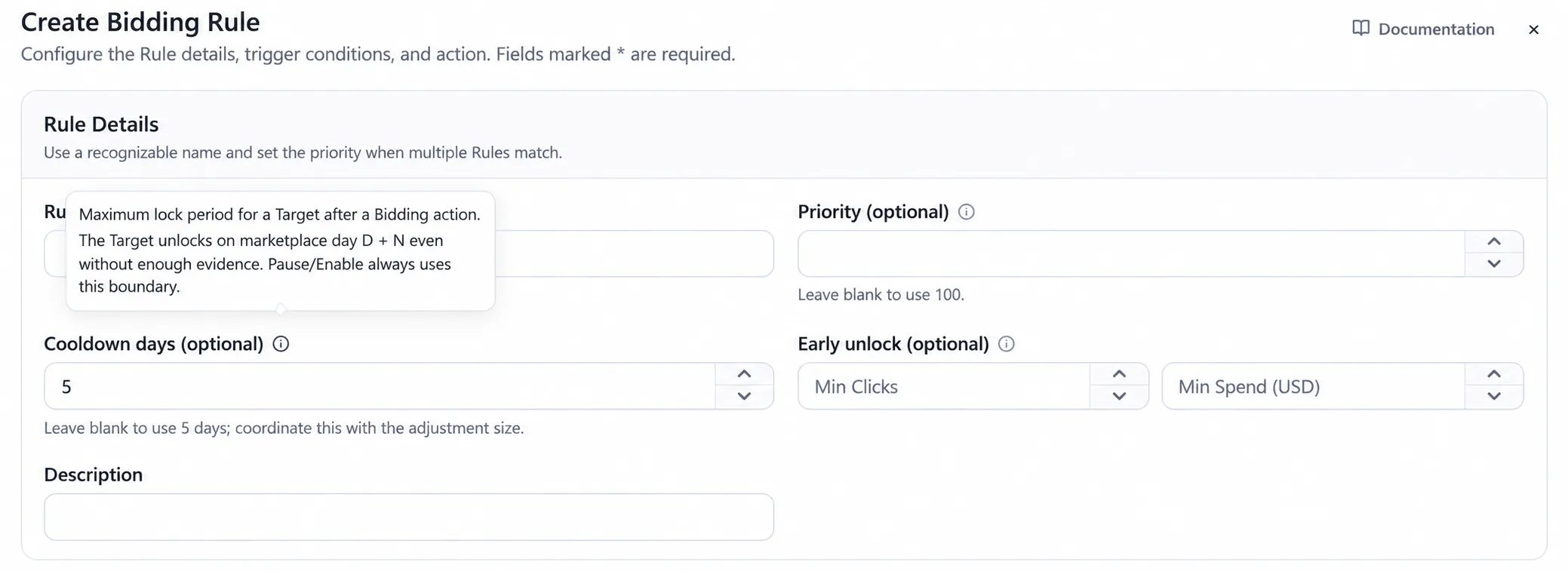
After a Bidding rule changes a bid, that target is locked until the cooldown expires — default five marketplace days, with clicks or spend able to release it early. The editor’s own advice is to coordinate the cooldown with the adjustment size: a big step needs longer to prove itself than a small one.
See Anatomy of a rule for the full countdown.
Settings and schedule inheritance
Section titled “Settings and schedule inheritance”A rule inherits its Data Window, recent-data exclusion, run weekdays and excluded dates from the Bidding Rule Settings unless you enable an override in the editor. A rule-level value replaces that setting for this rule; it does not change the shared default.
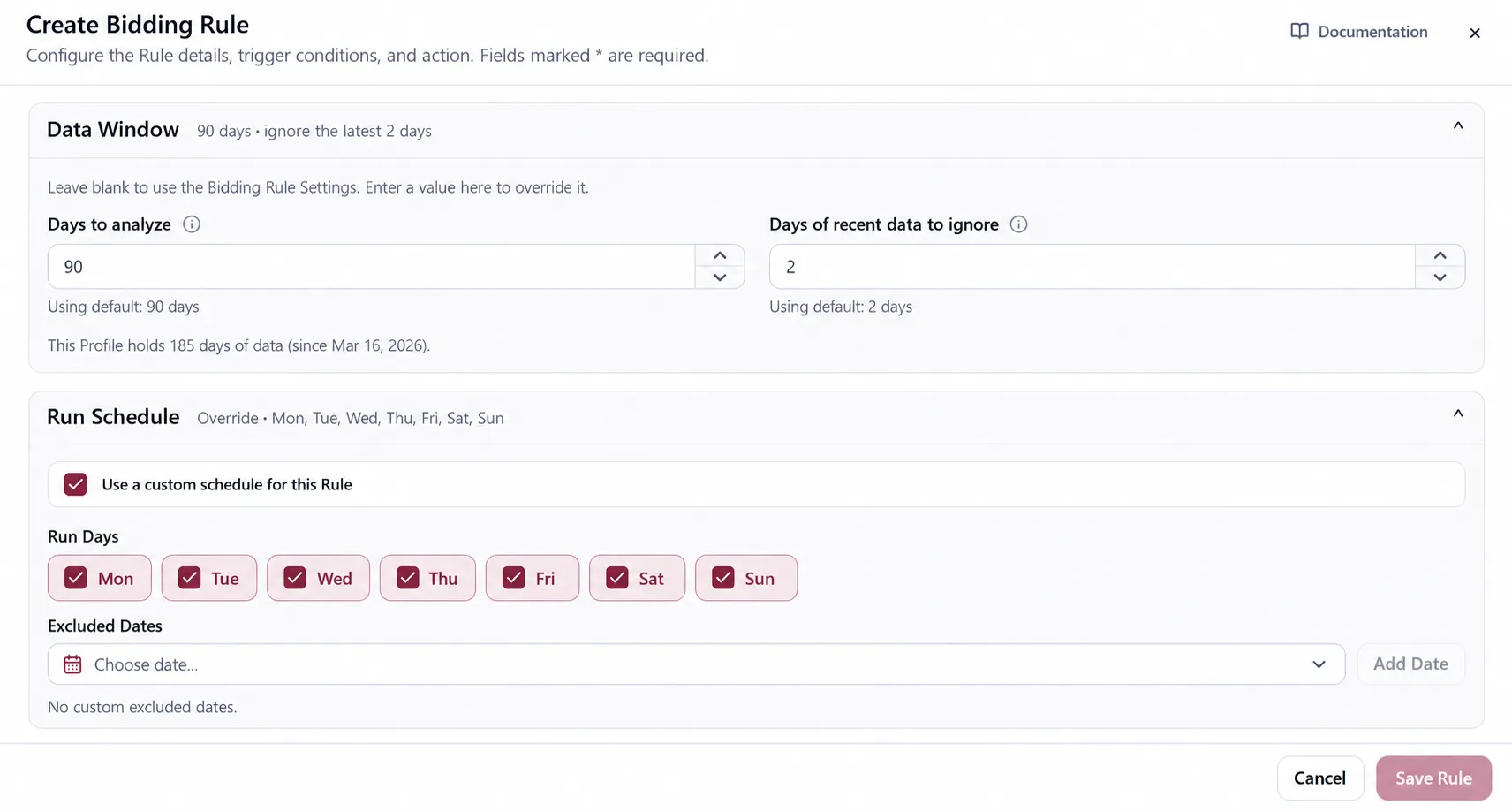
The schedule decides whether the rule is eligible to run on the current Los Angeles calendar date. It does not change which dates the Data Window measures. Select at least one run day when using a custom schedule.
Use cases
Section titled “Use cases”Bring an overspending target back to its economics
Section titled “Bring an overspending target back to its economics”A keyword converting steadily but at an ACOS well above break-even. Target ACOS with glide on, a 25% decrease cap, and a cooldown long enough for the new bid to gather clicks. It walks the bid down over several runs instead of collapsing your position in one.
Push a proven target harder
Section titled “Push a proven target harder”A target already inside your Target ACOS with volume to spare. Target ACOS without glide, and a generous increase cap. The calculation raises the bid to what the economics support, and the Max bid ceiling stops it running away.
Why did my bid fall while ACOS was good?
Section titled “Why did my bid fall while ACOS was good?”The ACOS direction gate prevented the Target ACOS formula from asking for a reduction. A ceiling then applied after that gate and after the per-run cap. If your configured Max Bid, effective-bid ceiling or another upper boundary was below the live bid, the boundary pulled the result down.
This is intentional: the formula expresses a goal, while the boundary expresses the most you have authorised. When the two conflict, the boundary wins.
Why was the target skipped?
Section titled “Why was the target skipped?”Start with the skip reason in the run rather than changing the formula first.
| Skip pattern | What to check |
|---|---|
| Rule scope | Ad Product, Billing Basis and Target Kind under Rule Applicability |
| Criteria | Target Criteria, Campaign Criteria and the window each trigger reads |
| Top of Search share | The Top of Search IS Criteria, or a safeguard carried by an imported/older rule, and whether share data exists |
| Missing current value or state | The target, Ad Group and Campaign must be in a state the selected action can change |
| Missing economics | Clicks, Sales, Orders, selling price or viewable impressions required by the selected Target ACOS formula |
| Missing CPC | A percentage-of-average-CPC boundary needs a positive CPC in the Data Window |
| Missing suggested bid | The selected low, median or high value and Sponsored Products targeting type must be available |
| Missing campaign budget | Sponsored Display vCPM needs the Campaign budget for its technical ceiling |
| Invalid bid limits | The strongest floor is above the strongest ceiling, or no whole-cent bid fits |
| Below a user floor | A lowering or held action does not reverse direction merely to raise a bid to a user floor |
| No change | The calculated, gated and constrained result equals the current bid |
| Cooldown or priority | Another Bidding decision still owns the target for this run |
Missing input is never interpreted as permission to ignore a configured guard or boundary. The rule fails closed and records why it did not stage a change.
Protect a launch from its own thin data
Section titled “Protect a launch from its own thin data”Percentage action at 0 — Hold — with a Criteria that matches while click volume is below what you
consider decisive. Nothing moves the bid, and lower-priority rules are blocked from moving it
either, until the target has enough evidence to be worth a decision.
Cut losses without a ratio argument
Section titled “Cut losses without a ratio argument”Use Loss Budget Guard rather than an ACOS threshold, so a small breach on small spend stops generating work.
A worked example
Section titled “A worked example”A keyword with a $1.20 bid, currently running at 90% ACOS, on a rule with a 50% Target ACOS, glide on, and a 25% decrease cap.
| Run | Effective target | Note |
|---|---|---|
| 1 | 82% | Gap closed by 20%; any resulting cut is capped at 25% of the bid |
| 2 | 75.6% | Only after the cooldown releases and new clicks have landed |
| 3 | 70.5% | Approaching, still bounded by the per-run cap |
Figures are an illustration of the arithmetic, not measured performance. What the bid actually becomes at each step depends on the target’s revenue per click in that window.
Considerations
Section titled “Considerations”- Coordinate cooldown with step size. A 25% move on a 1-day cooldown is a rule arguing with itself.
- The per-run cap and the boundaries are not alternatives. The cap limits the step; the boundaries limit the destination and apply afterward, so a boundary may require a larger move.
- A boundary is not relaxed to preserve Target ACOS. Review conflicting limits in Preview Changes; the App follows the limit you configured.
- A target with no usable economics — no clicks, or no sales to derive revenue per click from — is skipped rather than guessed at.
VendlenPrivacy PolicyTerms of ServiceContact
© 2026 HELODA PTE. LTD. Not affiliated with or endorsed by Amazon.