

Shipments
Open Inventory & Supply → Shipments or go directly to /inventory/shipments. This page is the
shipment register: it tells you what Amazon has reported, what the App created, and which movements
still need to be reconciled.
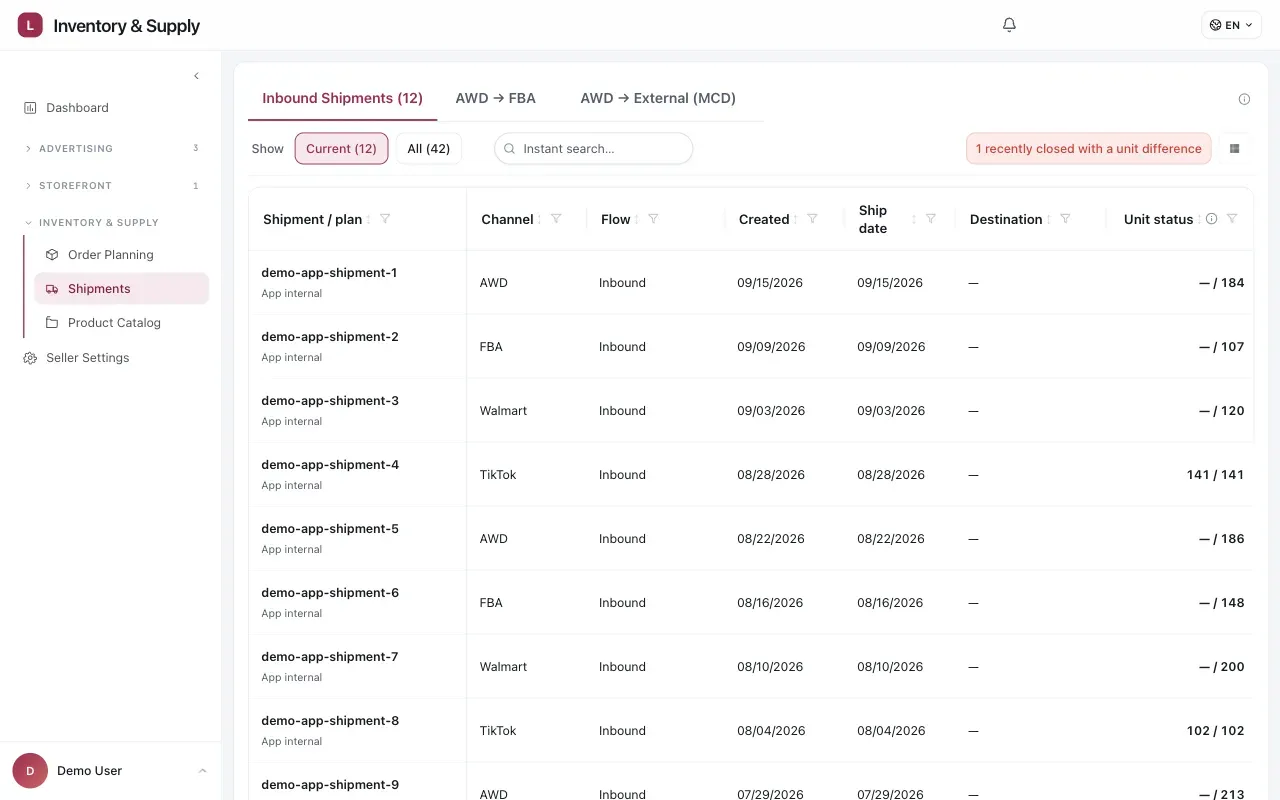
Use the tabs to separate new inbound supply from movements that redistribute stock already inside the network.
Amazon SP-API is required. Select the seller whose shipments you want to inspect. The page is desktop-first; on a phone it provides a read-only hint. In preview mode or without edit permission, you can inspect rows but cannot add or change tracking data.
Choose the shipment type
Section titled “Choose the shipment type”The page has three tabs. The number on a tab counts open records only; closed records are still available from All inside the relevant table.
| Tab | What it contains | Does it add inventory? |
|---|---|---|
| Inbound Shipments | Goods moving into AWD or directly to FBA, including Amazon rows that have not yet been classified. | Yes, once the inbound is part of a committed App plan. |
| AWD → FBA | Amazon’s internal replenishment from AWD to FBA. | No new network inventory; it moves stock between Amazon warehouses. |
| AWD → External (MCD) | AWD orders going to Walmart, TikTok, or another external warehouse. | No. Manual MCD tracking is operational context, not an Amazon-confirmed inventory movement. |
Matched App and Amazon shipments are shown as one row. A row can show both the App label and the marketplace status when they differ.
Inbound Shipments and AWD → FBA
Section titled “Inbound Shipments and AWD → FBA”Use the status rail above the table to switch between Current and All. Current hides rows whose App and marketplace statuses are terminal (Closed, Cancelled, Deleted, Archived, or Error). Use All when you need to find an older shipment or investigate a closed record. If a closed shipment recently has a received unit difference, the page offers a separate mismatch filter so it does not disappear in the normal view.
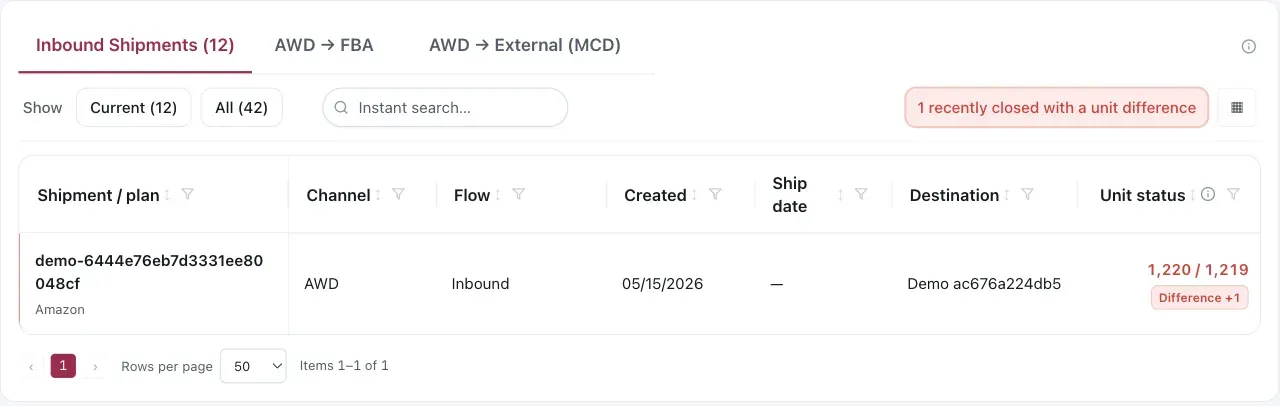
The exception filter keeps a recently closed mismatch visible after it leaves the Current list.
The table gives you the shipment or plan ID, channel, flow, dates, destination, unit status, carton status, charged fees, products, status, last update, and related purchase orders. “Located / Expected” and “Received / Expected cartons” are comparisons, not an estimate of what is still sellable.
Review a row
Section titled “Review a row”- Filter or sort by SKU, channel, flow, status, date, or destination.
- Open Actions → Show products to compare each product’s expected and received quantity.
- For an Amazon inbound, choose Actions → Add AGL ID and paste the AGL Order ID from Seller Central. The ID is used to match freight and duty charges; charged fees appear when Finance data is available. Use Edit AGL Order ID or Remove link to correct it.
- If the row is already represented in the plan, choose Open Pipeline to inspect its lot, pickup date, and expected arrival. Pipeline tracking determines whether the inbound is included in the projection; the register itself does not change that decision.
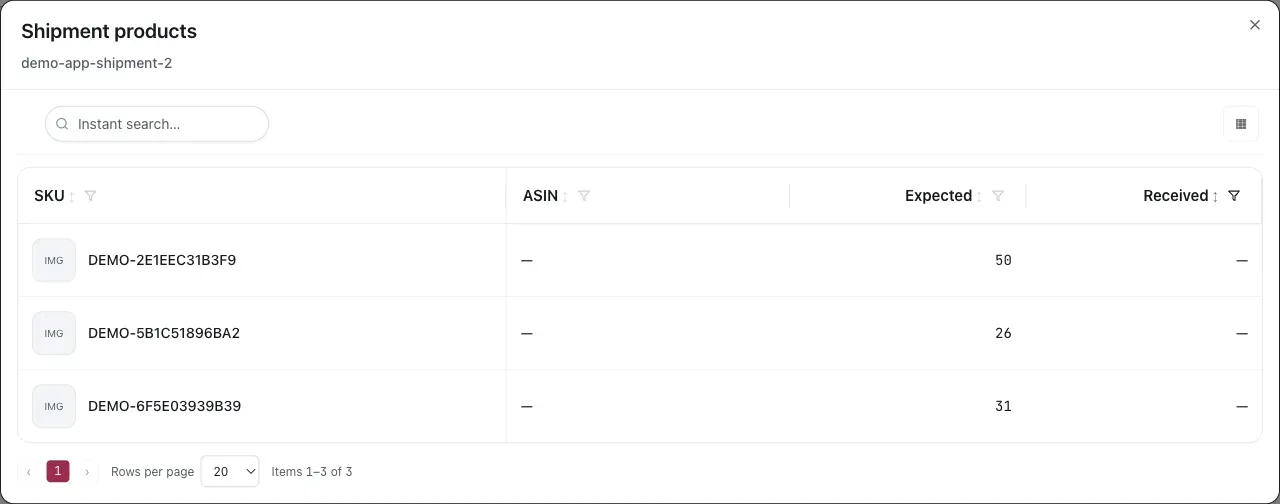
Compare expected and received quantities at SKU level before treating a row-level difference as resolved.
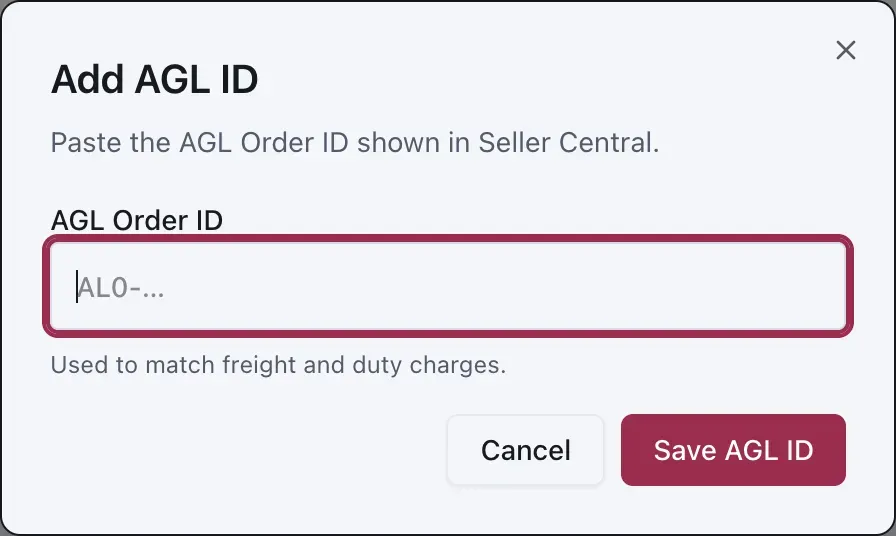
The AGL ID links freight and duty charges to the inbound; it does not change shipment quantities.
Add a TikTok inbound lot
Section titled “Add a TikTok inbound lot”When a TikTok connection exists and you have edit permission, Add TikTok Lot appears on the Inbound tab. TikTok does not provide an endpoint that lists inbound lots, so the lot becomes visible only after its stock movement is posted.
- Copy the TikTok inbound order ID. It is a number and may include the
IBRprefix. - Choose Add TikTok Lot, paste the ID, and select Pull Lot.
- Check the returned expected units, SKUs, and expected arrival, then close the dialog.
If the ID is not found, confirm that it belongs to the selected shop and that the TikTok connection is complete. This action reads TikTok data; it does not invent received quantities.
AWD → External (MCD)
Section titled “AWD → External (MCD)”MCD means an AWD multi-channel distribution order: stock leaves AWD for a destination outside
Amazon. The App can discover an order automatically when Amazon Finance reports an AWDMcdTransportationFee;
those rows show Source: Amazon (MCD fee) and start in Shipped status. Amazon’s fee record does
not include the destination, SKUs, quantity, or tracking details, so you still need to complete those
fields. Choose Add MCD Order when the order has not been discovered and you want to enter it
manually.
- Enter the MCD Order ID and choose the destination channel: Walmart, TikTok, or Other warehouse.
- Choose a receiving source when one exists. You can link an App shipment or a marketplace inbound source so the App pulls SKUs and quantities. Walmart planned quantities come from WFS expected units; TikTok planned quantities come from the inbound order and received quantities from FBT stock movements.
- If there is no source to link, add active selling SKUs and quantities under Products. Manual lines are required in this case; they are not inferred from the destination name.
- Add planned ship and delivery dates, destination or recipient, and an optional note.
- Add each physical child shipment when Amazon splits one MCD order. For every child, record the MCD shipment ID, status, carrier, tracking number, ship date, delivery date, origin, and destination.
- Save with Save Tracking. Reopen the row with View Details or Edit Tracking as the movement progresses.
An MCD record can be Draft, Submitted to Amazon, Shipped, Delivered, Closed, or Cancelled. A linked TikTok source can provide the marketplace status. The row’s Source makes the distinction visible: manual data is not presented as Amazon-confirmed, and it does not change the inventory projection.
When a shipment looks wrong
Section titled “When a shipment looks wrong”- A shipment missing from the projection may be an unmatched Amazon inbound. Reconcile it in the Inbound Pipeline before relying on its units.
- A unit mismatch on a recently closed row is an exception to investigate, not a new inventory adjustment. Use the mismatch filter and compare the product dialog with Seller Central.
- A missing fee usually means the AGL ID is not linked yet or Finance data has not arrived.
- A transfer in AWD → FBA should not be counted as new supply; it is the same Amazon inventory in a different warehouse.
VendlenPrivacy PolicyTerms of ServiceContact
© 2026 HELODA PTE. LTD. Not affiliated with or endorsed by Amazon.