

Purchasing and Production
This is where the plan stops being a projection and becomes an order somebody has to fulfil.
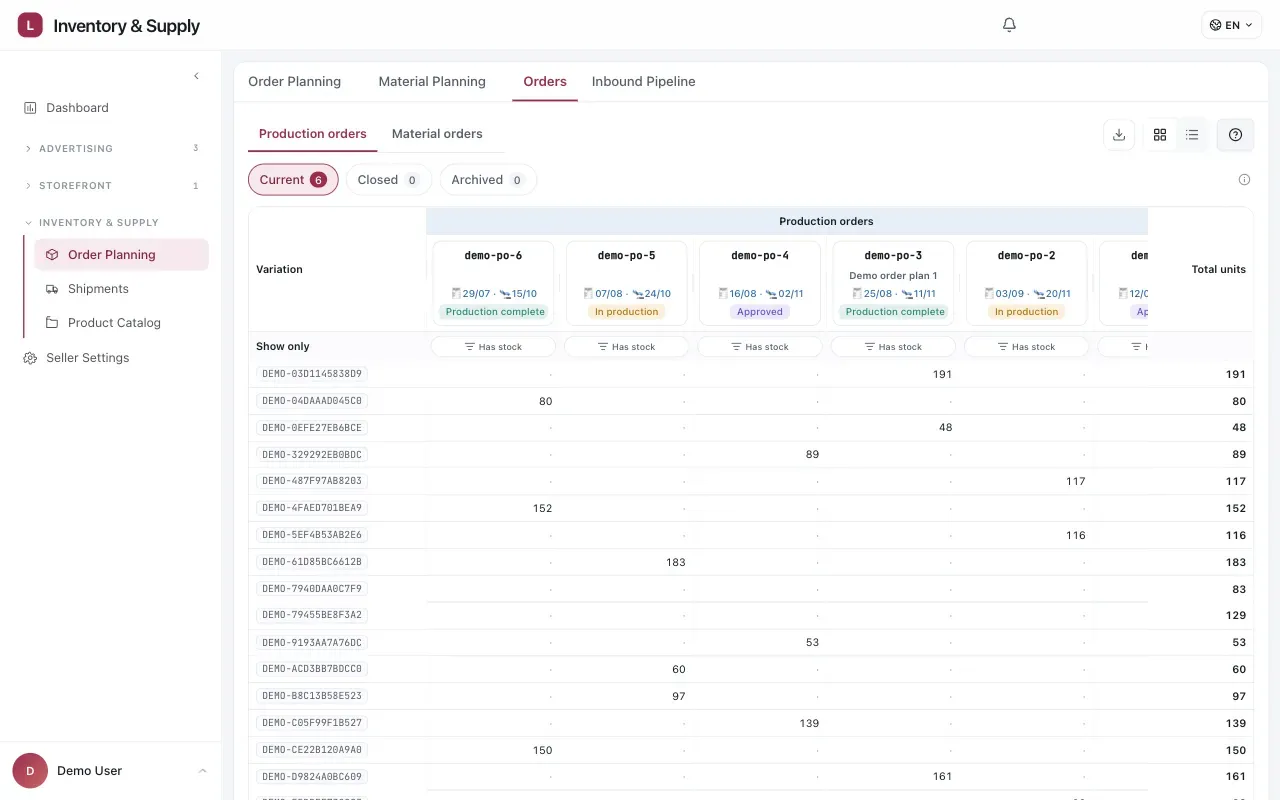
The production-order matrix shows which finished-good variations belong to each order and how many units each one carries.
The purchase order
Section titled “The purchase order”One or more shipment plans can be rolled into a purchase order. The plans carry the Sales SKU, channel, quantity and arrival week that created the demand; the PO translates that demand into the production SKUs and quantities the factory receives. A plan remains editable after PO creation until its goods are allocated.
The plan and PO are linked records, not the same object. Keeping that link is what lets a PO found later be traced back to the shipment demand and projection that caused it.
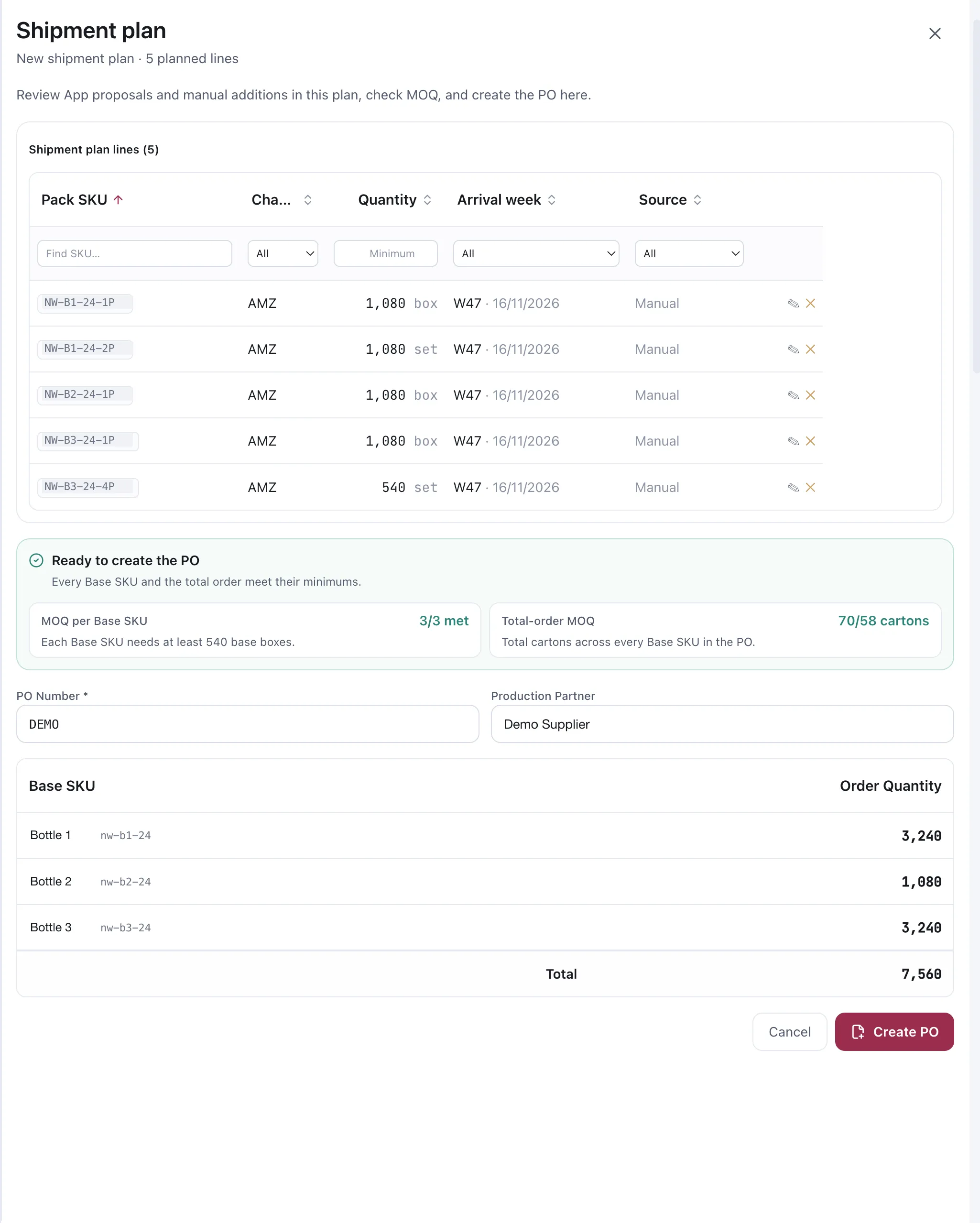
The plan, its two minimum checks, and the order it is about to become.
The two checks before a PO exists
Section titled “The two checks before a PO exists”The panel above the button is not decoration. It is the pair of checks that decide whether this plan can become an order at all:
| Check | What it asks |
|---|---|
| Per-production-SKU MOQ | Does every production SKU in the plan reach its own minimum run? |
| Total-order MOQ | Do the production units across all production SKUs reach the manufacturer’s minimum order? |
Both are shown as a fraction, so a plan that fails tells you by how much. That is usually the difference between “wait another week” and “add one more Sales SKU to this run”. The panel turns green and reads Ready to create the PO only when both pass.
Working the plan lines
Section titled “Working the plan lines”Each line is Sales SKU · Channel · Quantity · Arrival week · Source, and the quantity carries its
unit — a line in box and a line in set are not the same thing, which is what makes a multipack
readable at a glance. Every column sorts, a filter row under the header narrows by SKU, channel, a
minimum quantity, arrival week or source, and a line can be removed while the plan is still a plan.
PO Number is required and Production Partner names who is making it. The table under them is the order as the manufacturer will read it: one row per Production SKU, its order quantity, and a total.
Plan lines carry their source, so a line the App proposed and a line you added by hand stay distinguishable after the fact. When the App adds to an existing plan it fills only the remaining gap — it does not duplicate a line you have already put there.
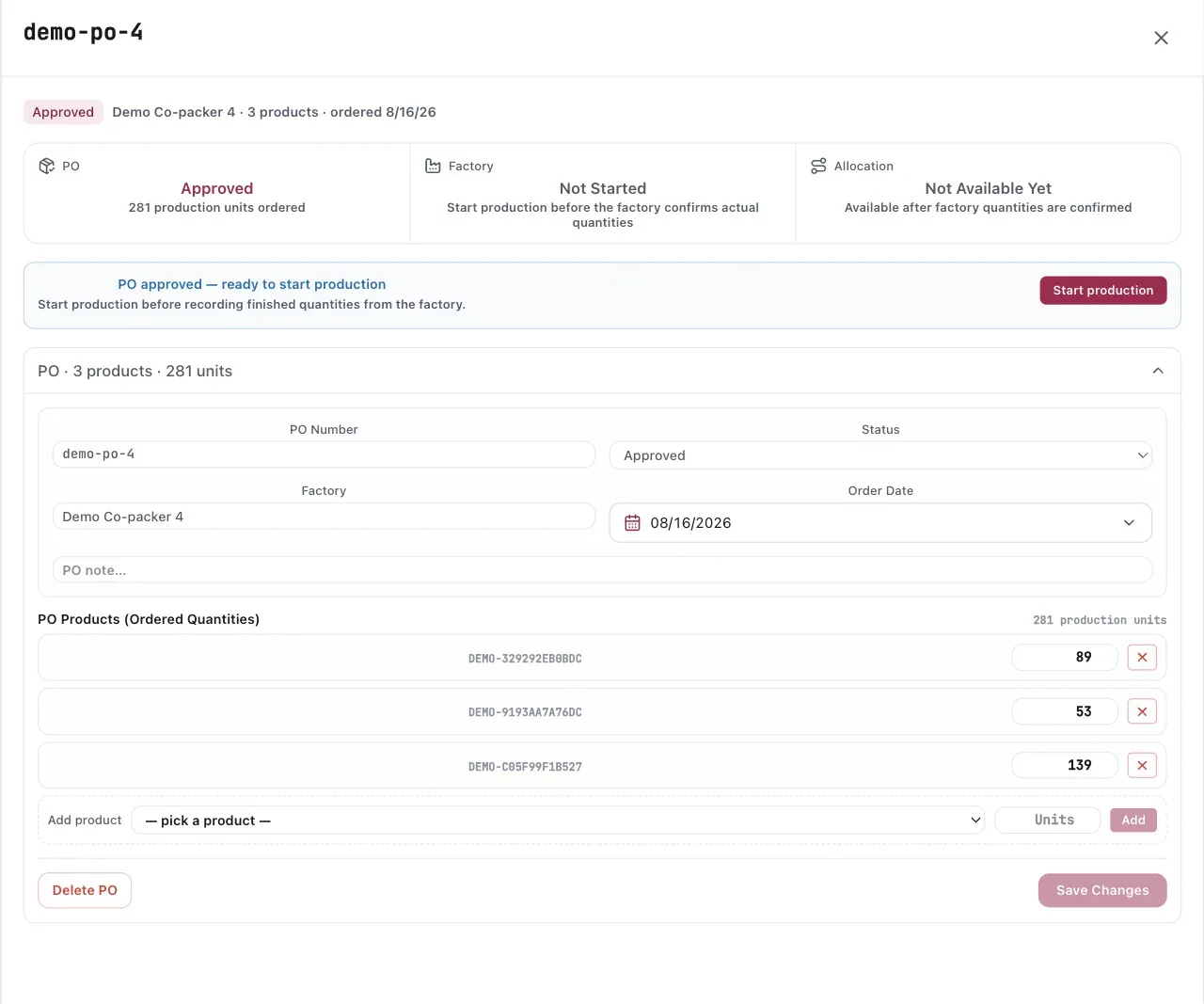
The three status cards show where the order is now and which next step is available.
One production run, several Sales SKUs
Section titled “One production run, several Sales SKUs”The production run is one number. What comes out of it is several Sales SKUs.
Make 1,000 production units and pack 400 as singles and 300 as twin packs, and the run stays a single figure while each sales SKU takes its own share. This keeps the conversation with the manufacturer in the units they work in, and the projection in the units you sell in.
Confirming what the factory actually made
Section titled “Confirming what the factory actually made”An order and a delivery are two different numbers. A PO in production shows the ordered quantity and waits for the factory’s actual quantities; nothing downstream moves until they are confirmed.
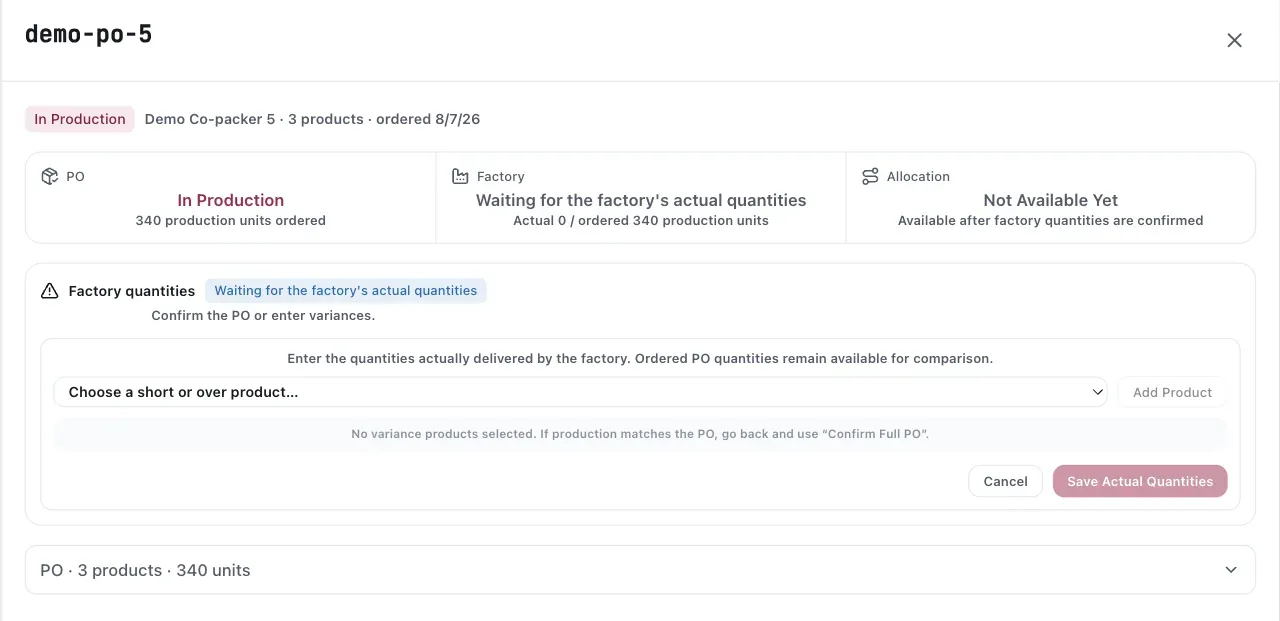
Record only the variance when production differs from the PO; use Confirm Full PO when it matches.
When the factory quantities are confirmed, the goods enter the seller’s shared Factory Stock pool. It is not isolated to one PO: an allocation may use available stock left by more than one completed PO. The PO still shows what it contributed and how much remains unallocated.
Allocation
Section titled “Allocation”Allocation fulfils shipment demand that already exists. Choose the shipment plans the finished goods should satisfy, review the quantity match, then allocate. If the available production is short, edit the shipment plan rather than letting the App silently reduce it; surplus stays in Factory Stock for a later plan.
Allocation changes the selected App shipment plans from draft demand into planned lots and creates the App-side shipment records they need. It does not create new demand from the PO.
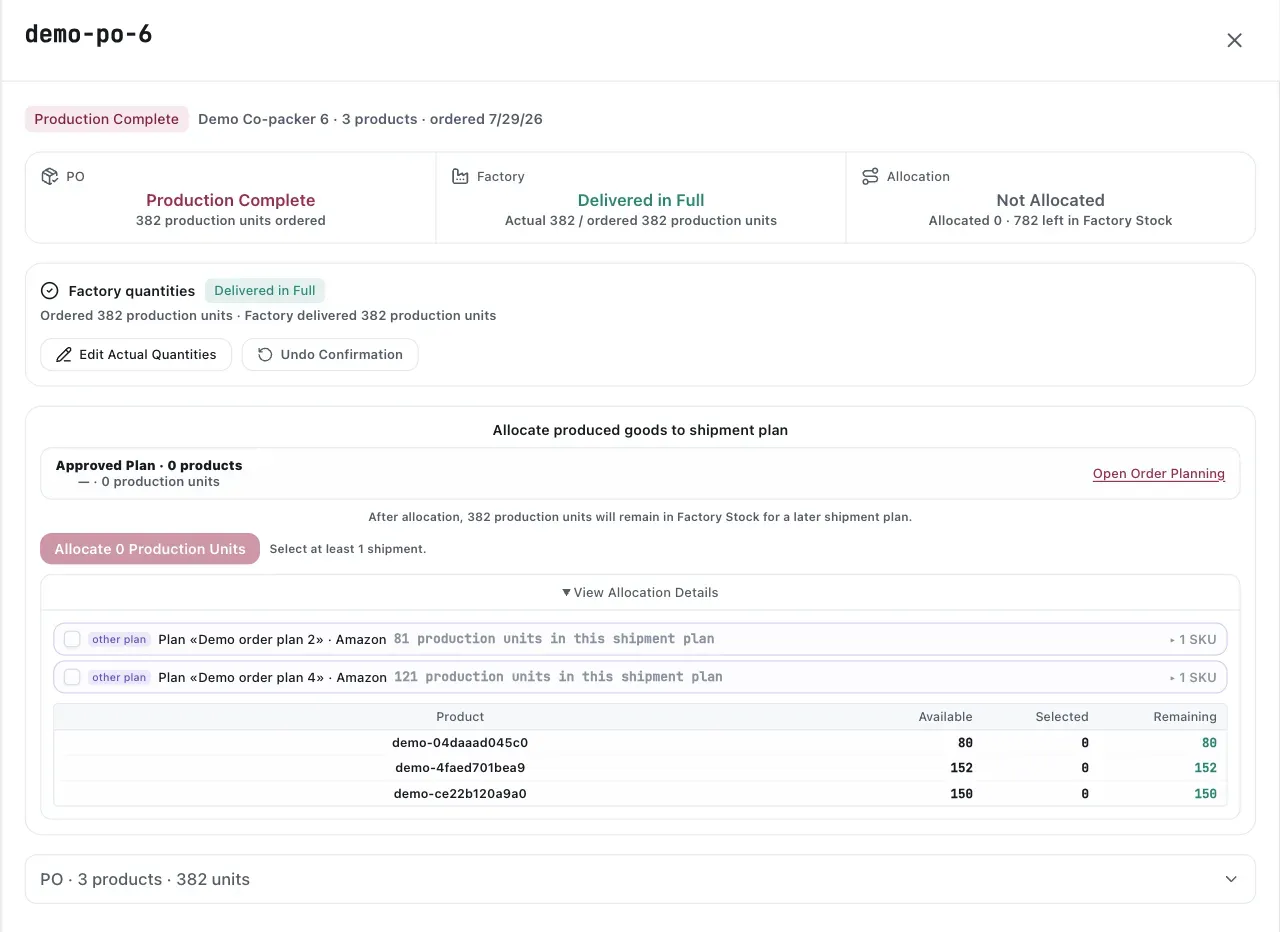
Allocation assigns confirmed factory output to demand that already exists in approved shipment plans.
If the physical shipment already exists on Amazon, you can link the planned lot to it. The App keeps its own actual quantity and never writes quantities back to Amazon. Linking makes the two refer to the same physical movement; it does not let one edit the other. When no Amazon shipment exists yet, keep tracking the App lot and link it after the Amazon shipment is created.
From allocation to a tracked lot
Section titled “From allocation to a tracked lot”Each allocated shipment plan becomes a planned lot in the Inbound Pipeline, mapped to the real shipment with a pickup date and an estimated arrival. You can also inspect its register row in Shipments. From that point the projection stops being an assumption about incoming stock and starts reading a shipment that actually exists.
Considerations
Section titled “Considerations”- Production and transit time feed the order dates in Order Planning. Keeping them accurate is what keeps the dates honest.
- A lot that slips changes the projection for every week after it. Update the arrival date rather than leaving the grid optimistic.
VendlenPrivacy PolicyTerms of ServiceContact
© 2026 HELODA PTE. LTD. Not affiliated with or endorsed by Amazon.