

Creating a Product Group
A Product Group is the set of ASINs that share one meaningful keyword set — usually the variants of a single product. Grouping them is what lets a decision read their evidence as one body instead of one thin row at a time.
Creating one
Section titled “Creating one”The ASIN table lists your products with an Ungrouped section at the top: select variants of the same product to create a Group.
- Tick the ASINs that belong together.
- The toolbar shows how many you have selected.
- Press Create Group.
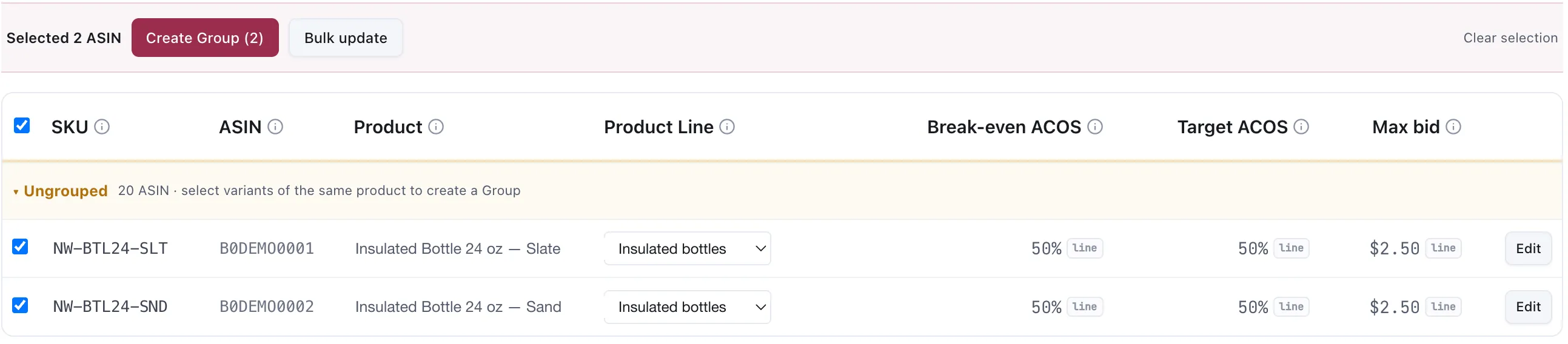
Two variants of one product selected, ready to group. The line badge on each number means it is
inherited from the Product Line rather than set here. SKU and ASIN values are demo replacements.
The selection toolbar also offers Bulk update, which applies a change to every selected ASIN without grouping them — useful for setting the same Product Line across a batch — and Clear selection, which drops the selection without acting on it.
What belongs in one group
Section titled “What belongs in one group”Variants a shopper would find with the same searches. They may differ by colour, size, capacity, material, style, quantity, pack size, flavour or anything else — what matters is that the searches are the same. The same bottle in three colours belongs in one group, and so do its 18, 24 and 32 ounce versions, if shoppers search for it without naming the colour or the size.
What does not: two products that merely sit in the same category. If a query that suits one would be wrong for the other, grouping them means the wrong evidence starts driving decisions on both. See Decision scope.
Assigning a Product Line
Section titled “Assigning a Product Line”An ungrouped row carries a Product Line dropdown. Assigning one gives that ASIN the line’s context and its default economics.
An ASIN that is already in a Product Group does not get that dropdown: the Group owns the line, because a group belongs to exactly one. The row shows a locked in Group marker instead. To move such an ASIN to a different line, move its group.
An ASIN with no line assigned falls back to the account default Product Line, if you have set one.
The three numbers, and where they come from
Section titled “The three numbers, and where they come from”Every row shows Break-even ACOS, Target ACOS and Max bid, each with a small badge naming
where the value came from. A line badge means the value is inherited from the Product Line rather
than set here.
That badge is the useful part of the table. It tells you at a glance which ASINs are running on defaults and which have been given their own numbers.
Overriding for the group
Section titled “Overriding for the group”Use Edit on a row, or set values at the group level, to override what the line provides. A group override applies to every ASIN in the group and takes precedence over the line.
Override when the group genuinely differs from the rest of its line — a size or material with a different margin, a variant you are defending, a product whose competitive position is not like its siblings. Leave it inherited when it does not, because an inherited value keeps following the line when you update it and an override stops listening.
Which value actually applies to a given ASIN is a four-level question, and it has its own page: How the economics resolve.
Considerations
Section titled “Considerations”- Grouping changes what evidence a decision may read, not what it may change. A rule reading at Product Group scope still writes its change only where it is assigned.
- A group note counts against the profile’s 10,000-character description budget, same as everything else.
- Adding an ASIN to a group later is fine; the group’s evidence simply widens from that point.
VendlenPrivacy PolicyTerms of ServiceContact
© 2026 HELODA PTE. LTD. Not affiliated with or endorsed by Amazon.