

Performance workspace
Performance is the workspace where you work on the account by hand. Everything an Automation rule can do, you can do here — bid, state, placement, audience, budget, negatives — with the difference that you decide each one.
The bulk action pattern
Section titled “The bulk action pattern”Every bulk action opens the same dialog, and learning it once covers all of them.
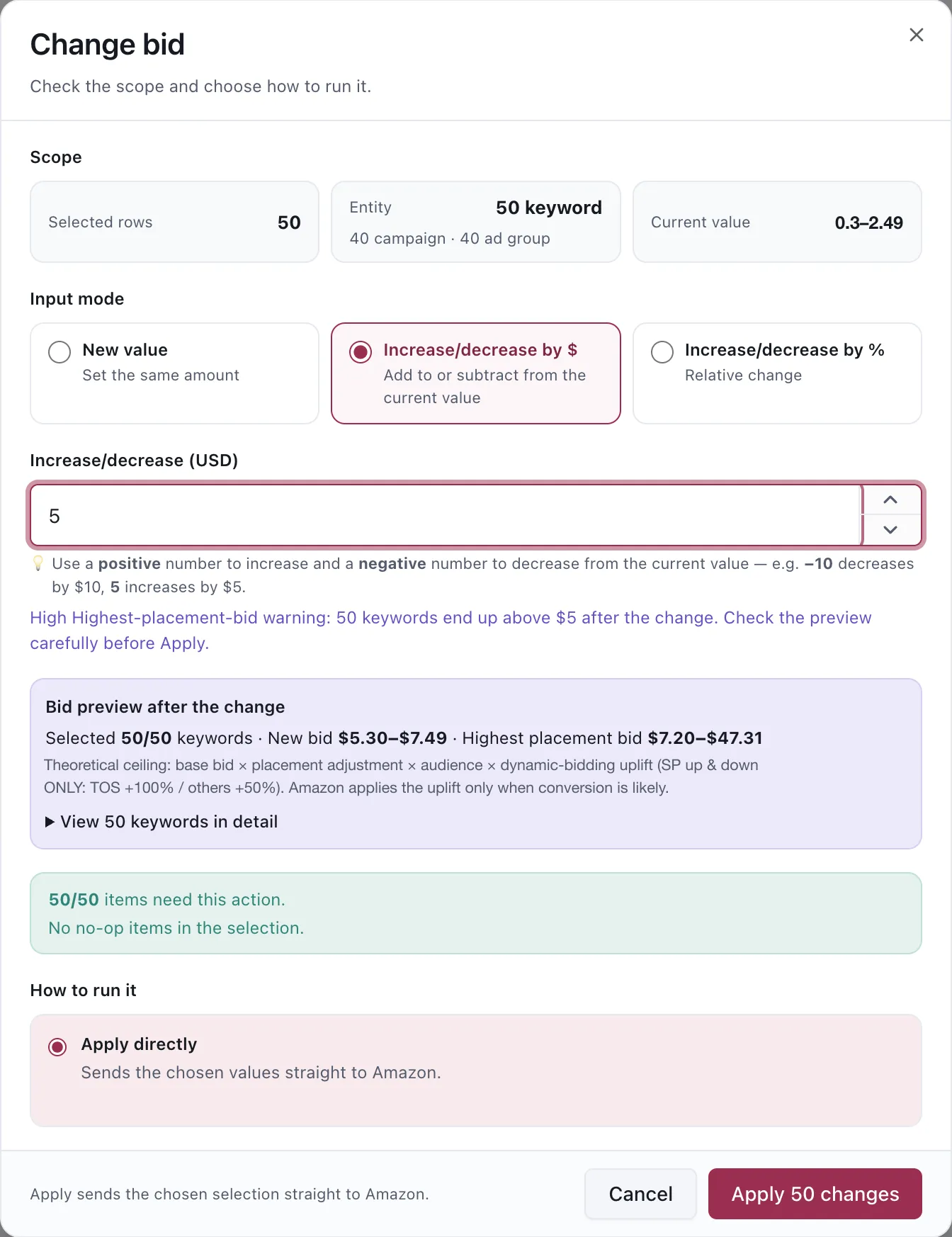
Change bid, with Increase/decrease by $ selected.
1. Scope — what you are about to touch
Section titled “1. Scope — what you are about to touch”Before anything else the dialog states how many rows you selected, what entity they resolve to, how many campaigns and ad groups that spans, and the current value range across the selection.
That range is the part worth reading. A selection whose bids already run from $0.30 to $2.49 will not respond uniformly to a flat change.
2. Input mode — how the number is applied
Section titled “2. Input mode — how the number is applied”| Mode | What it does |
|---|---|
| New value | Sets every selected row to the same amount |
| Increase/decrease by $ | Adds to or subtracts from each row’s current value |
| Increase/decrease by % | A relative change, so each row moves in proportion to itself |
A positive number increases and a negative number decreases: -10 takes $10 off, 5 adds $5.
New value flattens, the other two preserve shape. If your selection has a considered spread of bids, setting one new value throws that away. Increasing by a percentage keeps it.
3. Warnings and the preview
Section titled “3. Warnings and the preview”The dialog warns before you apply, not after. The warning names the count and the reason:
- Large-change warning — 50 placement move more than 10 % points from the current value.
- High Highest-placement-bid warning — 50 keywords end up above $5 after the change.
For bids it also previews the resulting range, and something less obvious: the highest placement bid.
The highest placement bid
Section titled “The highest placement bid”Your bid is not what you can end up paying. Amazon multiplies it:
base bid × placement adjustment × audience adjustment × dynamic-bidding upliftFor Sponsored Products with up-and-down dynamic bidding, that uplift is +100% on top of search and +50% elsewhere, and Amazon applies it only when it judges conversion likely.
So a $5.30 bid with placement and audience adjustments stacked can have a theoretical ceiling many times higher. The preview shows that ceiling range alongside the new bid range, which is the number to sanity-check before applying a broad increase.
4. The no-op summary
Section titled “4. The no-op summary”The dialog counts how many of your selected rows actually need the change, and says so plainly — and where rows cannot take the action, it says why and applies to the rest.
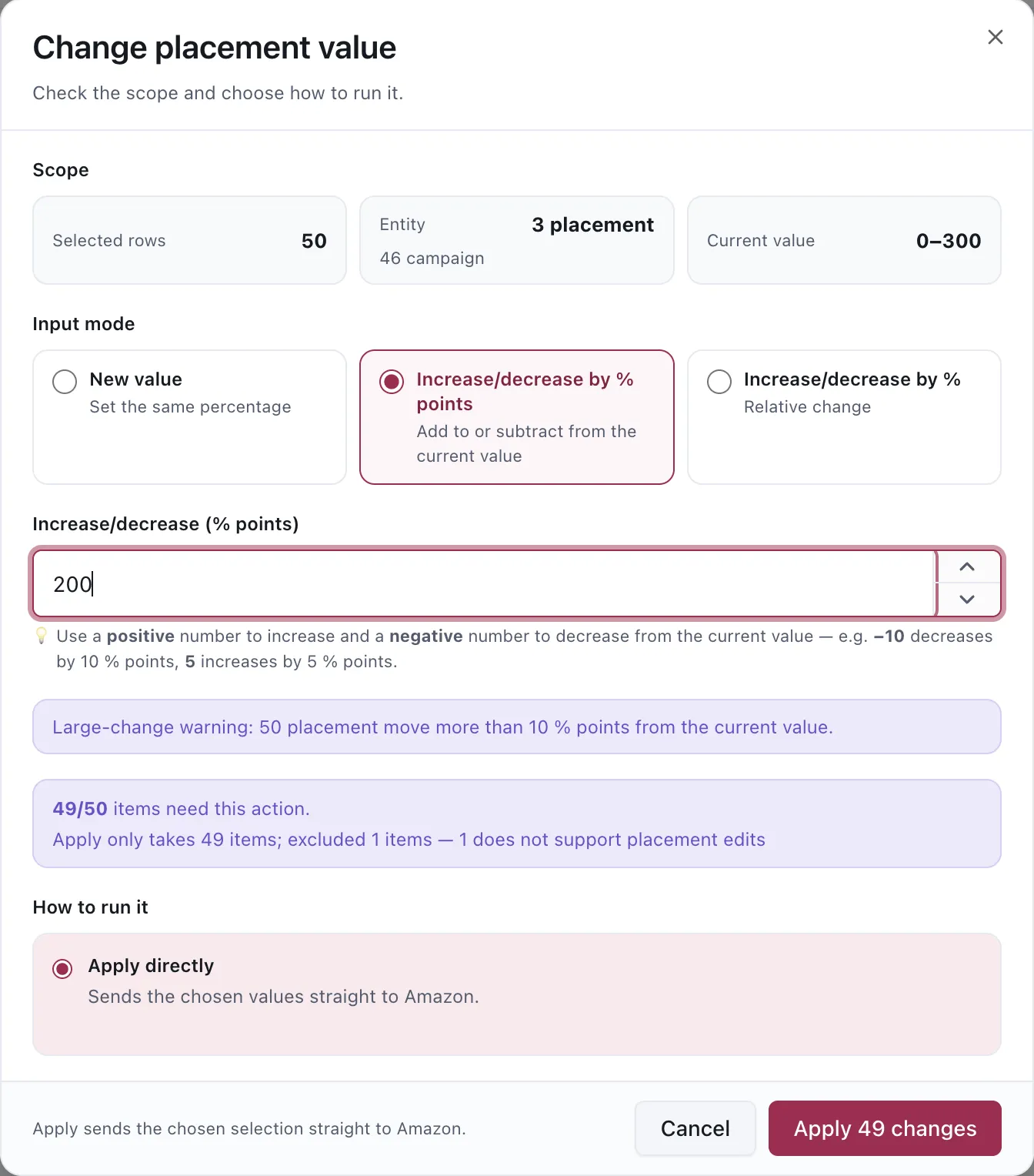
Placement changes are entered in percentage points. The summary names what it will skip and why.
5. How to run it
Section titled “5. How to run it”Apply directly sends the chosen values straight to Amazon. The footer repeats it — Apply sends the chosen selection straight to Amazon — and the button names the count, Apply 49 changes, so the number you confirm is the number that goes.
When nothing in the selection needs the action, the button reads No item needs a change instead of offering to apply.
Finding what is already blocked
Section titled “Finding what is already blocked”Select Negation filters the table by whether a target is negated, and where.
AD GROUP and CAMPAIGN filter by where the negative sits and what type it is. A negative in one ad group leaves the term running everywhere else in the campaign, which is why the two levels are listed apart.
IMPACT separates what the App can prove from what needs investigation:
- Fully blocked means an active negative covers the row.
- Partially blocked means the block is in place somewhere and traffic is still running elsewhere.
- Possibly blocked means no active negative was found, but a keyword that previously converted has lost traffic abnormally. It appears when the keyword recorded at least 10 orders in the last 180 days and its impressions in the latest 14 days are either zero or at least 90% below the preceding 14 days.
Possibly blocked never includes a row with a negative the App can identify. Those rows belong to Fully blocked. Its tooltip separates What is happening, Why it is suspicious and What to check, so treat the chip as an investigation prompt rather than proof of a hidden negative.
The signal is rebuilt by Daily Ads restatement after a complete fetch, scheduled for 07:00 Vietnam time. It is not real-time, and the column can remain empty until the first nightly build after the feature is enabled.
Not negated is the inverse: everything still running, with nothing stopping it.
Last activity and Last order
Section titled “Last activity and Last order”The Keywords table carries two dates that help explain a sudden stop:
| Column | Meaning |
|---|---|
| Last activity | The last date the keyword recorded an impression |
| Last order | The last date the keyword recorded an order |
Date columns use the same filter grammar as numeric columns: =, !=, >=, >, <=, <,
has data and is empty. You can combine two conditions with AND or OR, and choose each
date with the date picker.
Excluding targeting from Automation
Section titled “Excluding targeting from Automation”Select rows in Keywords/Targeting, then choose Exclude from the action bar. For targeting, choose what Automation must leave alone:
- Bid only
- Enable/Pause only
- Both
Set the hold for 7, 14 or 30 days, choose a custom 1–365 days, or choose No end date.
The hold uses the same close-variant family as negative matching. Excluding hibiscus tea therefore
also excludes hibiscus teas. Saving another spelling replaces the existing hold for that family;
removing the exclusion removes it for the whole family.
The Excluded from Automation · N chip sits at the far right of the action bar. Select it to show only excluded rows. Automation previews and scheduled runs omit the protected action entirely.
The exclusion applies to Automation rules. It does not stop Dayparting, Agent proposals or a direct change you make in Ads Manager.
What you can change in bulk
Section titled “What you can change in bulk”| Action | Entered as |
|---|---|
| Bid | An amount, a delta, or a percentage |
| Daily budget | An amount, a delta, or a percentage |
| Placement adjustment | Percentage points, or a relative percentage |
| Audience boost | Percentage points, or a relative percentage |
| State | Enable or pause |
| Negatives | Keywords and ASINs — see Harvest, negate and unnegate |
Placement and audience are entered in percentage points, not dollars: -10 means ten points
off the current adjustment, not ten percent of it.
Considerations
Section titled “Considerations”- Bulk actions here are direct edits. They are not bound by the Product Line’s rule-set bid ceilings, which apply to rules and proposals rather than to you.
- A direct edit resets nothing else. A Bidding rule’s cooldown governs what rules may do, not what you may do.
- Everything applied here is recorded. See Change History.
VendlenPrivacy PolicyTerms of ServiceContact
© 2026 HELODA PTE. LTD. Not affiliated with or endorsed by Amazon.