

Roles and permissions
Permissions are set per person, per area, at three levels: None, View, or Edit.
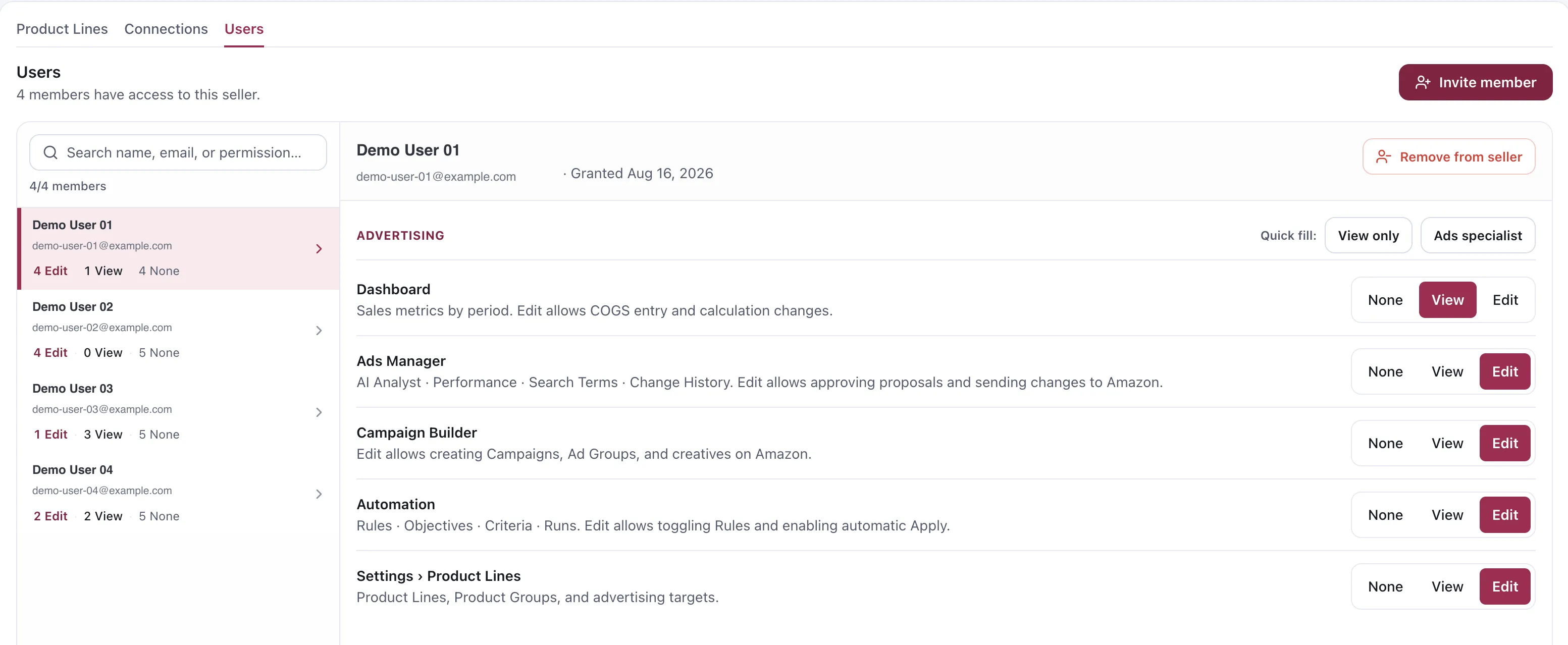
Permissions for one member. Names and addresses are demo replacements.
The three levels
Section titled “The three levels”| Level | Means |
|---|---|
| None | The area is not visible |
| View | Can read it, cannot change it |
| Edit | Can change it — and in some areas, can change your Amazon account |
What each area covers
Section titled “What each area covers”These five are the Advertising group. Two things sit outside it: connecting and disconnecting Amazon is reserved to the seller owner and is not a grantable permission, and a set of Inventory permissions exists but cannot be granted yet.
| Area | What Edit allows |
|---|---|
| Dashboard | Sales metrics by period. Edit allows COGS entry and calculation changes |
| Ads Manager | AI Analyst, Performance, Search Terms, Change History. Edit allows approving proposals and sending changes to Amazon |
| Campaign Builder | Edit allows creating campaigns, ad groups and creatives on Amazon |
| Automation | Rules, Objectives, Criteria, Runs. Edit allows toggling rules and enabling automatic Apply |
| Settings › Product Lines | Product Lines, Product Groups, and advertising targets |
The two that spend money
Section titled “The two that spend money”Read those descriptions again. Most Edit permissions change something inside Vendlen. Two of them reach further:
Ads Manager · Edit lets someone approve a proposal and send it to Amazon. That is a live change to a live account.
Automation · Edit lets someone enable automatic Apply on a rule — which means changes go to Amazon without a person reviewing each one. It is the most consequential permission in the product, and the one to grant last.
Campaign Builder · Edit creates campaigns on Amazon. Less dangerous than the other two, since creating is easier to undo than spending, but still an outward action.
Quick fill
Section titled “Quick fill”Two presets save setting five areas by hand:
- View only — read everything, change nothing. The right starting point for anyone new.
- Ads specialist — the working set for someone whose job is the advertising.
Presets are a starting point, not a role. After applying one, look at Automation before you save.
Managing members
Section titled “Managing members”The Users tab lists everyone with access to this seller and summarises each person as counts — 4 Edit · 1 View · 4 None. Read the counts before opening anyone: they tell you who holds Edit without five clicks per person. They also run across more areas than the five Advertising ones, so the totals will not match what that section shows.
- Invite member adds someone.
- The search box filters by name, email, or permission.
- An opened member shows the date their access was granted.
- Remove from seller revokes it.
Choosing a shape
Section titled “Choosing a shape”Start at View only. It costs nothing to raise a permission later, and someone who cannot yet break anything can still learn the account.
Separate seeing from sending. Ads Manager View lets an analyst do the analysis and hand you the conclusion. They do not need Edit to be useful.
Treat Automation Edit as the senior permission. Not because rules are dangerous — they are bounded — but because whoever holds it decides what the account actually acts on.
Settings › Product Lines is quieter than it looks. It does not send anything to Amazon, but the economics set there bound what every rule and proposal may bid. Someone who can edit them can change what the whole account is allowed to do.
Considerations
Section titled “Considerations”- Permissions are per seller profile. A person with access to two profiles has separate permissions in each.
- Removing someone from the seller revokes their access immediately. It does not undo what they already sent to Amazon — that is in Change History.
VendlenPrivacy PolicyTerms of ServiceContact
© 2026 HELODA PTE. LTD. Not affiliated with or endorsed by Amazon.