

Material planning
Material Planning is for sellers who buy components and then manufacture finished goods. Open
/inventory → Material Planning; the tab links to /inventory/materials?view=purchase. Material
codes, units, supplier quotes and on-hand stock live under
Product Catalog → Materials.
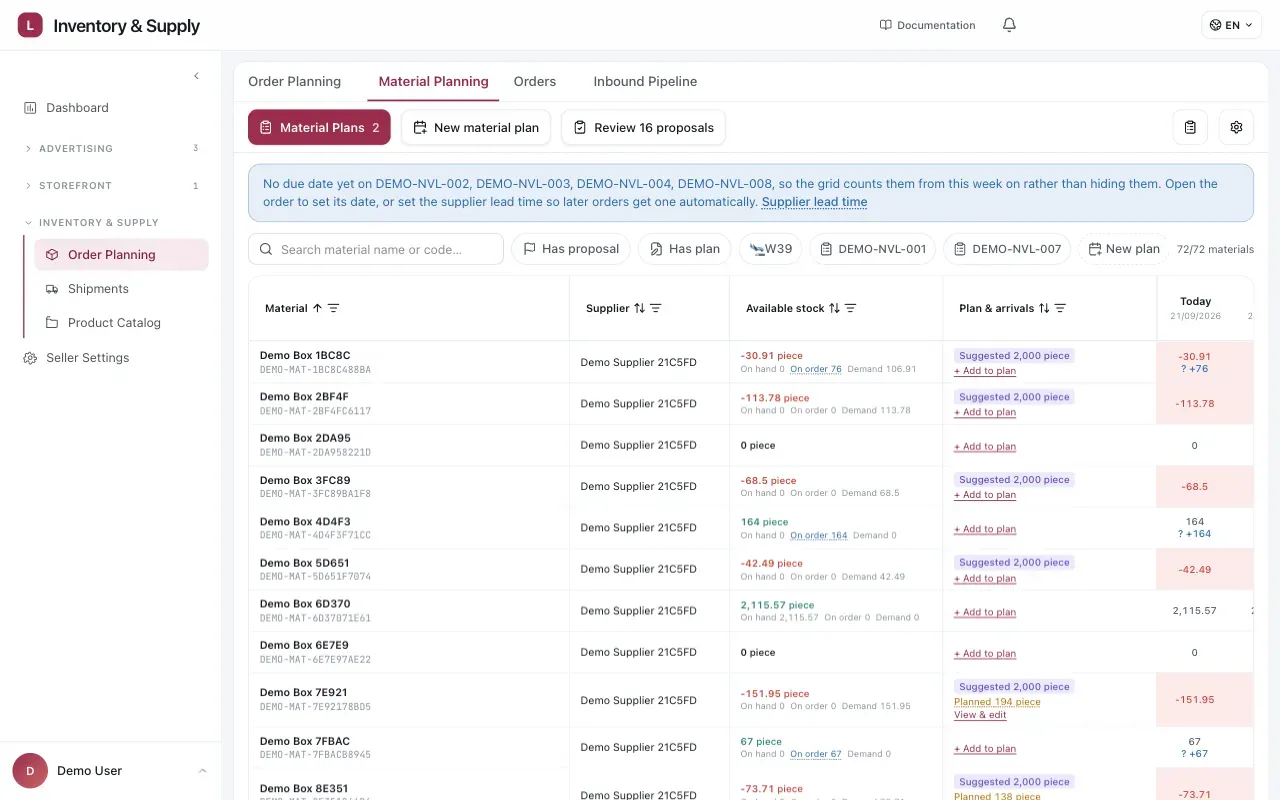
The material grid keeps available stock, proposed purchases, planned arrivals, and future balances on the same row.
This tab appears only when Manufacturing & production orders is enabled. Editing is desktop-only; mobile is read-only, and preview mode disables every write action.
What it does
Section titled “What it does”The grid projects each material week by week against:
- stock on hand;
- quantities not yet received from material purchase orders; and
- demand from approved production orders and their recipes.
Use Demand comes from on a material row to see which production orders consume it. A shared material includes demand from every approved run that uses it; it is not calculated one finished product at a time.
The proposal starts with the net shortage. It adds whichever configured safety buffer is greater — the percentage buffer or the minimum quantity — then applies the material MOQ and rounds to the supplier’s configured order unit. The supplier’s total-order minimum is checked later across the whole basket; it does not inflate one material’s proposal.
The proposed quantity is still only a suggestion. Nothing is ordered until you add quantities to a material plan, pass the minimum checks and approve the purchase order.
Before reviewing proposals
Section titled “Before reviewing proposals”Check these inputs first:
- Every material in a recipe exists and is active in Product Catalog.
- The recipe quantity and recovery percentage describe one production unit correctly.
- The material has a preferred supplier, price currency, material MOQ and compatible order unit.
- Supplier settings contain the delivery time and total-order minimum.
- On-hand stock and open purchase-order receipts are current.
The grid calls out missing recipes, unknown or inactive material codes, and materials without a supplier. Fix the reference data before approving an order; otherwise the missing demand cannot be made safe by increasing another line.
Build a material plan
Section titled “Build a material plan”Materials are grouped by supplier because each purchase order has one supplier.
- Use the proposal filter or choose Review proposals.
- Check the projected shortage, safety buffer, suggested quantity and demand sources.
- Pick or create a material plan for the supplier.
- Enter the total quantity to keep in the draft. You may adjust the suggestion or add a material with no proposal when you have an operational reason.
- Save the draft. When selecting several materials, the App creates one plan per supplier rather than mixing suppliers into one order.
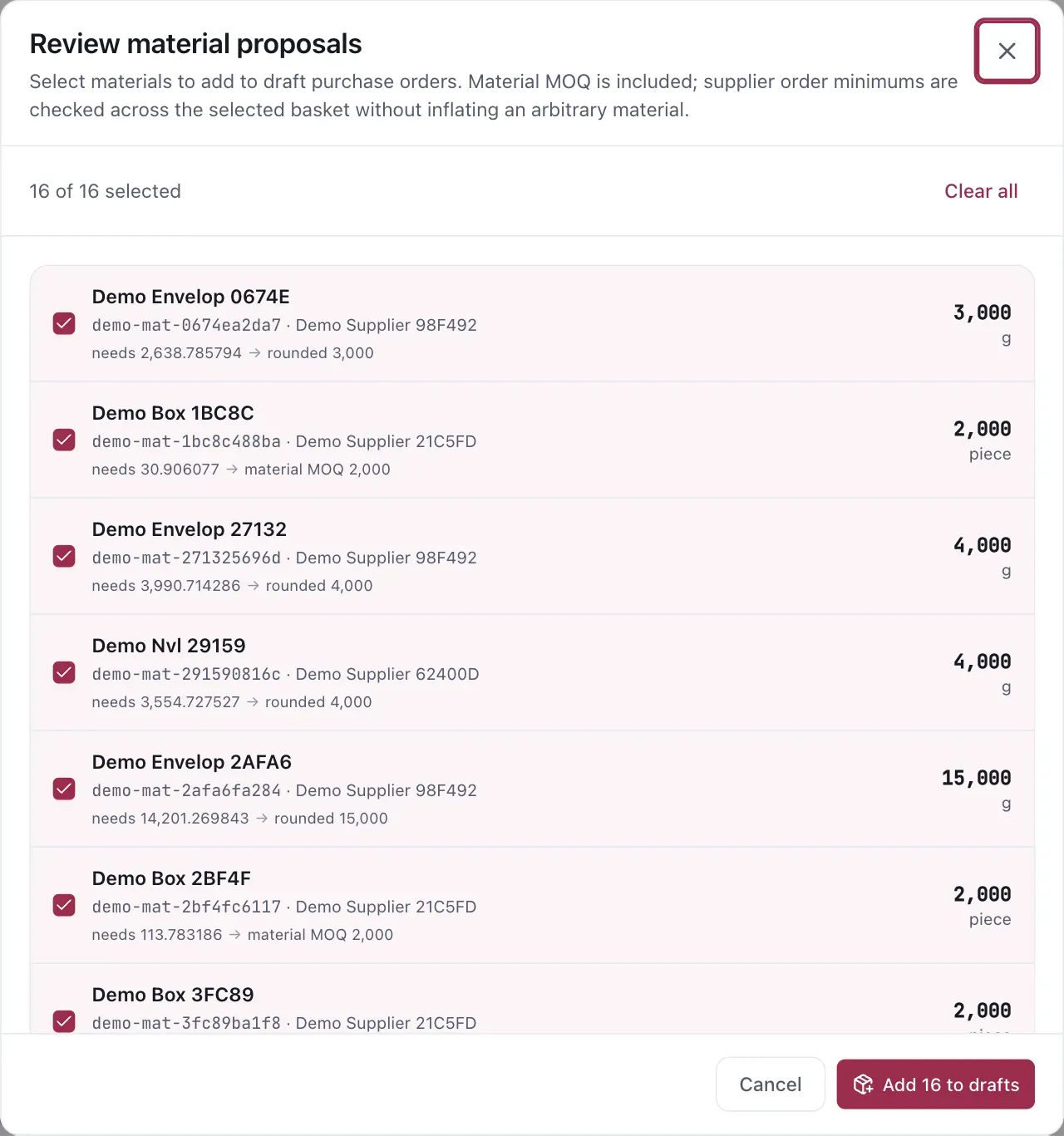
Review the need and its rounding before adding selected materials to supplier-specific drafts.
Material MOQ is evaluated per line. The supplier minimum is checked across the whole basket; the App does not inflate an arbitrary material just to make the supplier total pass. A supplier whose quotes use more than one currency must be split into separate orders or corrected in Product Catalog.
Reusable material baskets are available from Ordering templates. Use one when you repeatedly buy the same set of components; the template fills a draft, but you still review and approve the result.
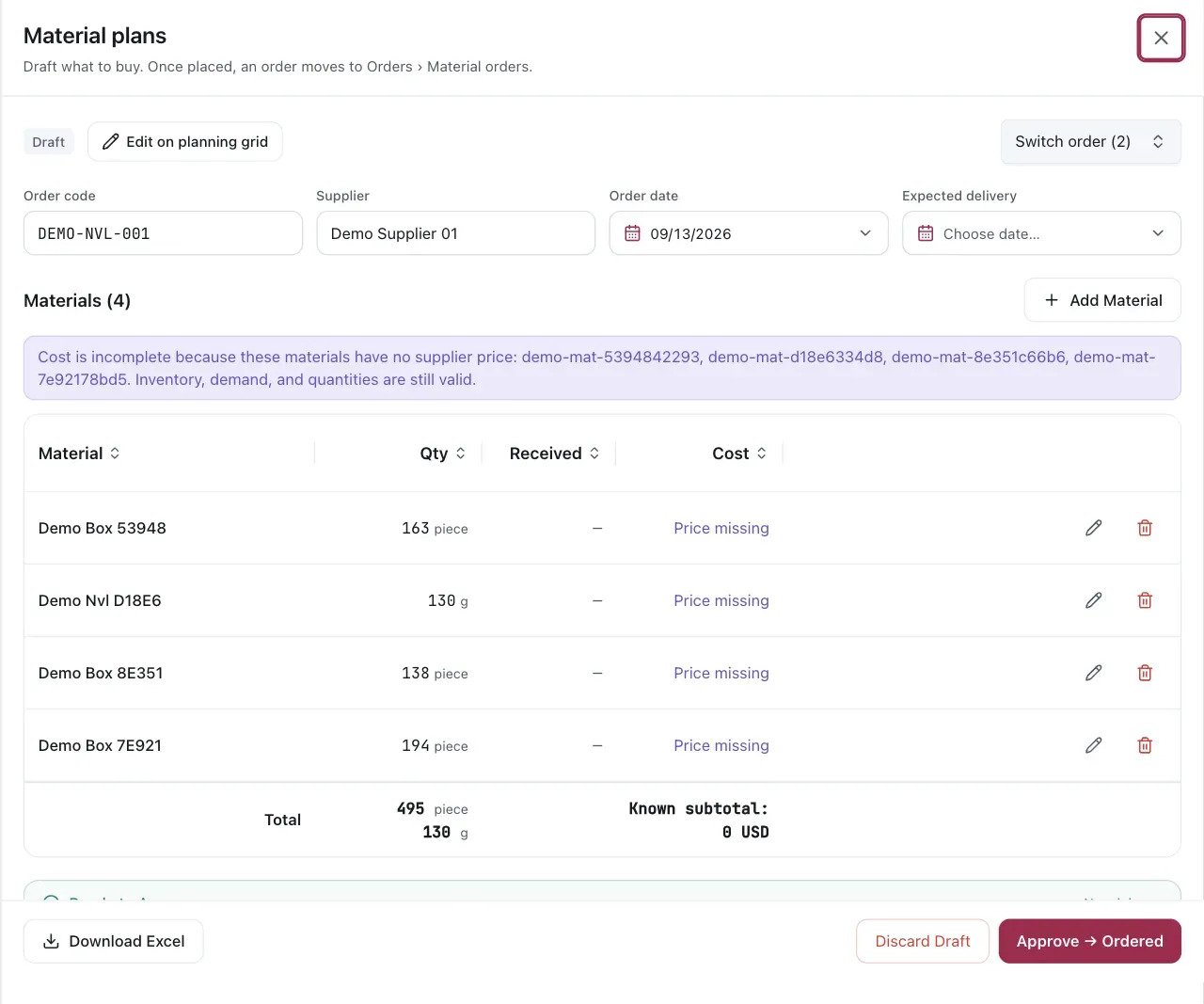
A draft can be approved only after its dates, quantities, prices, and supplier minimum are ready.
Approve and manage the purchase order
Section titled “Approve and manage the purchase order”Open Material plans to review drafts. Before approval, confirm:
- supplier and currency;
- order code and order date;
- expected delivery date;
- every material quantity and unit; and
- the material and supplier MOQ indicators.
Approval changes the draft into a material purchase order. The App records the decision; it does not
send an order to the supplier. Open /inventory/orders?tab=material or choose Orders → Material
orders when you need the complete registry across draft, ordered, in-transit, partially received,
received and closed states. The registry has matrix and list views and can be exported.
Receive material
Section titled “Receive material”Choose Receive on the order and enter the running total received to date for every line, not only the quantity in the latest delivery. The App moves stock by the difference between the new total and the total already recorded.
You can receive an order in several deliveries. If you enter a lower cumulative total, the App asks for confirmation because the correction reduces stock. Closing an order with an unreceived balance cancels that balance and returns the need to To buy. A fully received order can be reopened; an order closed short cannot be reopened as received.
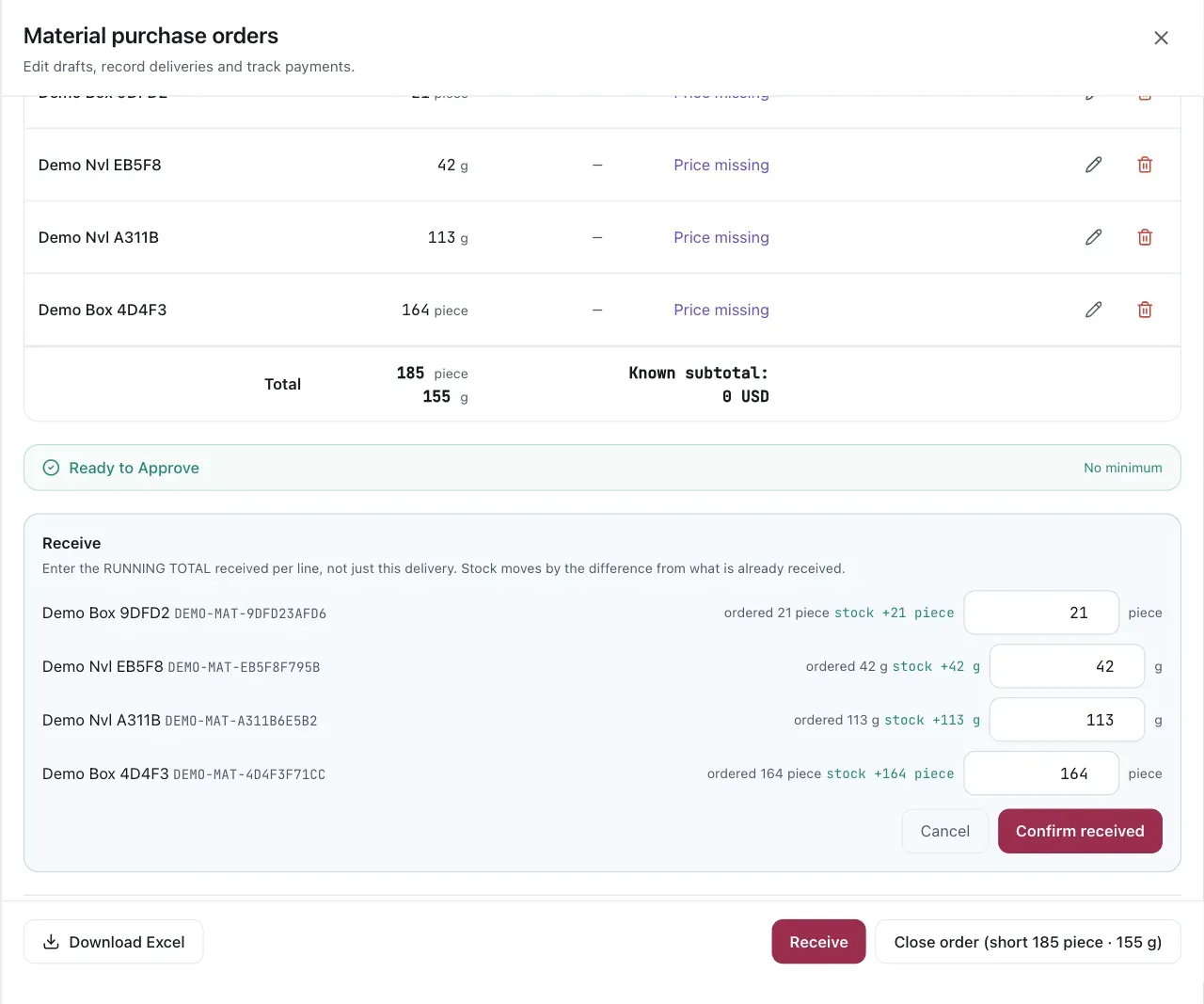
Enter the cumulative received total for each line; the App posts only the difference from the previous total.
How it connects to production
Section titled “How it connects to production”Material demand is derived from approved production orders through their recipes. When a production order is consumed, the material ledger records the consumption; the planner does not keep counting the same run as future demand. This separation prevents received stock and already-consumed material from being counted twice.
When you do not need it
Section titled “When you do not need it”If you buy finished, packed goods from a manufacturer, you do not need material planning. The chain runs from the purchase order straight to allocation without this branch.
Considerations
Section titled “Considerations”- Supplier tax is shown for reference; planned costs use the pre-tax price.
- Changing a material unit converts stored recipes, orders, receipts, prices, MOQ and stock. Review the conversion preview before confirming it.
- A stocktake is an explicit adjustment. It can break the normal
stock = received − consumedrelationship, which is why large differences are highlighted for review rather than silently rejected.
VendlenPrivacy PolicyTerms of ServiceContact
© 2026 HELODA PTE. LTD. Not affiliated with or endorsed by Amazon.