

Product Catalog
Open Inventory & Supply → Product Catalog or /inventory/master-data. This is the reference-data
workspace used by Order Planning. Finish the catalog setup before troubleshooting a missing proposal:
the planner cannot use a SKU that is not linked, marked for sale, or supplied with the data it needs.
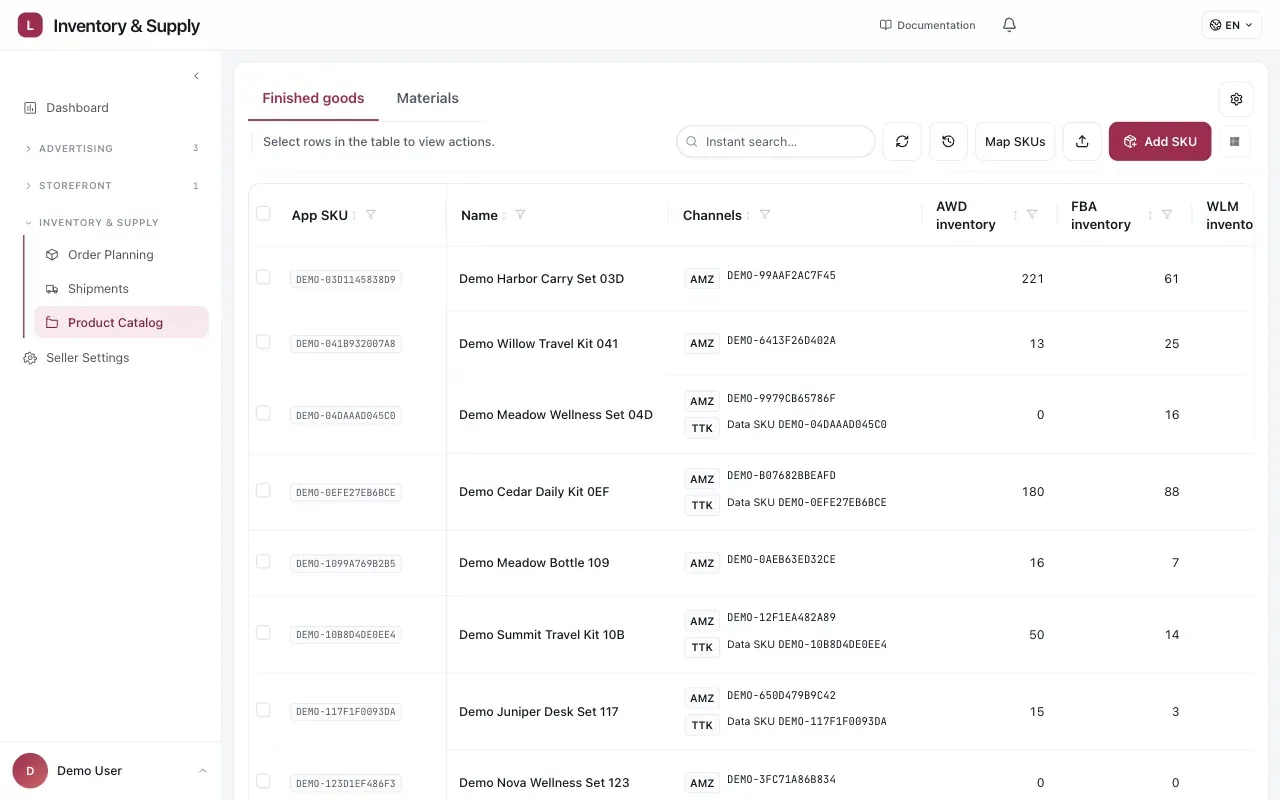
Finished goods keeps each App SKU beside its marketplace mappings and channel inventory.
Amazon SP-API is required for Amazon product and inventory data. Select the correct seller profile first. Product Catalog is desktop-only for editing; preview mode and missing edit permission leave the data readable but turn off saves, imports, and other write actions.
Choose a tab
Section titled “Choose a tab”| Tab | Use it for | Availability |
|---|---|---|
| Finished goods | App SKUs, selling status, marketplace mappings, carton and MOQ fields, recipes, buffers, and inventory data tools. | Always |
| Materials | Component master data, supplier offers, material stock, and reconciliation. | Only when Manufacturing & production orders is on |
The Supply setup button controls manufacturing mode. Turning it off hides Materials and each finished good’s Recipe section, and renames the Order Planning Production tab to Purchase Orders. Order Planning and Inbound Pipeline remain available either way.
Finished goods: the setup sequence
Section titled “Finished goods: the setup sequence”Use the table’s search, filters, sorting, and column menu to find a row. Open a finished good to work through its details; the table keeps the common checks visible so you do not have to open every row.
- Confirm identity and status. Keep the App SKU stable once it is used in history or orders. If it must change, use Change App-SKU so the App can update internal references while marketplace SKUs and ASINs stay unchanged. Set the name and description, then check Active and For sale. Discontinued removes the SKU from normal selling choices; it does not erase its history.
- Check pack and production fields. Set production units per carton and the SKU’s production MOQ when they differ from the defaults. Add carton length, width, and height when shipment volume matters. Rows without a carton specification stay in unit entry mode in Order Planning.
- Check sales-channel presence. Amazon presence comes from the confirmed listing mapping. Walmart and TikTok can also be declared for manual planning lanes. A channel-specific safety buffer can override the default from Planning settings. Amazon planning covers AWD + FBA; Walmart uses WFS; TikTok uses FBT.
- Map marketplace identifiers. Use Map SKUs to review suggestions and confirm the marketplace SKU for Amazon, Walmart, or TikTok. The App SKU is the internal identity shared across channels; the seller SKU (and Amazon ASIN, when present) is the marketplace identity. A mapping marked Not linked or Needs fixing is not safe to use for channel planning.
- Define the recipe (manufacturing mode). Open Recipe and add each material plus quantity per variation and recovery percentage. A bundle’s recipe is derived from its component SKUs; edit the component recipes instead. A material must exist in the Materials tab before it can be used.
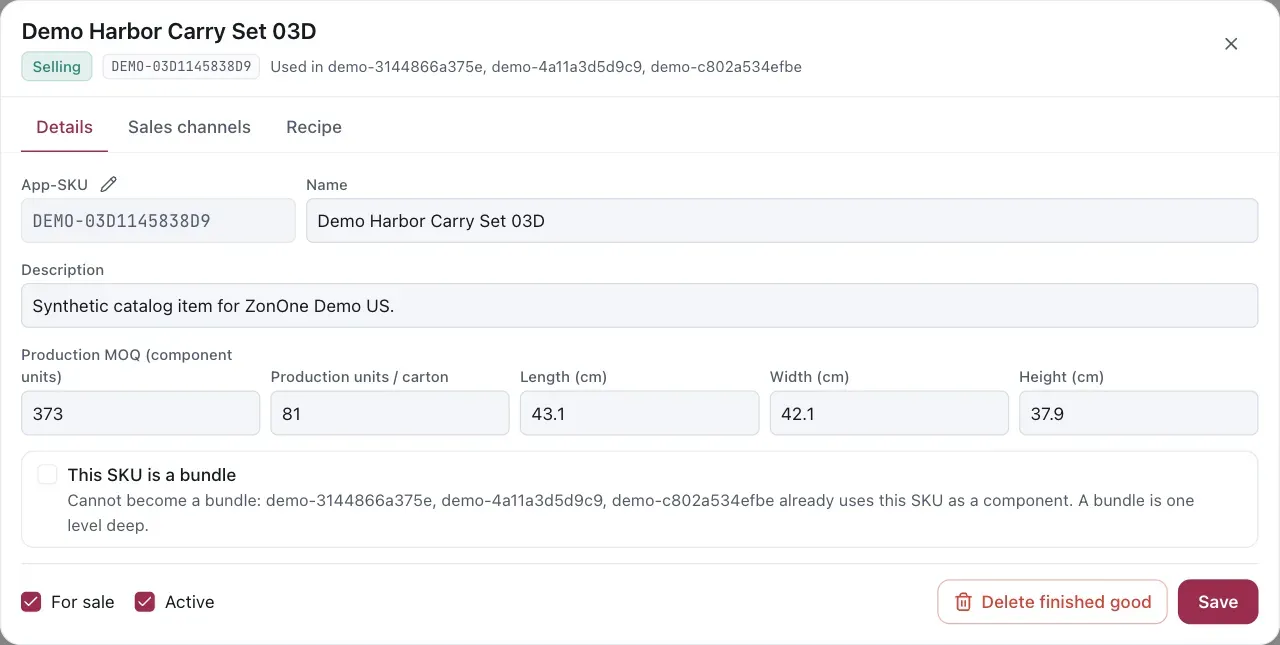
Start with stable identity, selling state, production MOQ, and carton data.
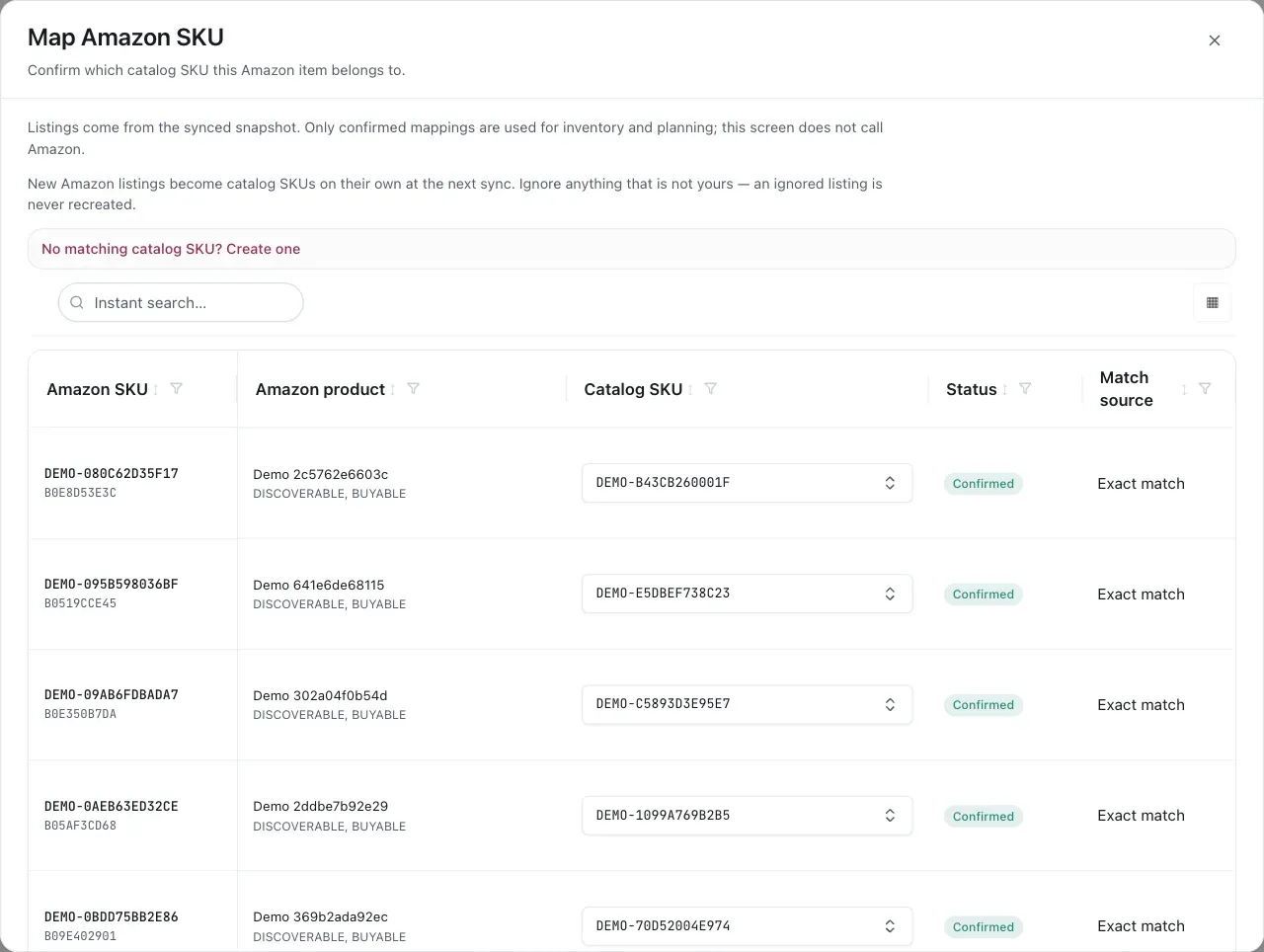
Confirm which catalog SKU owns each marketplace listing before relying on its inventory.
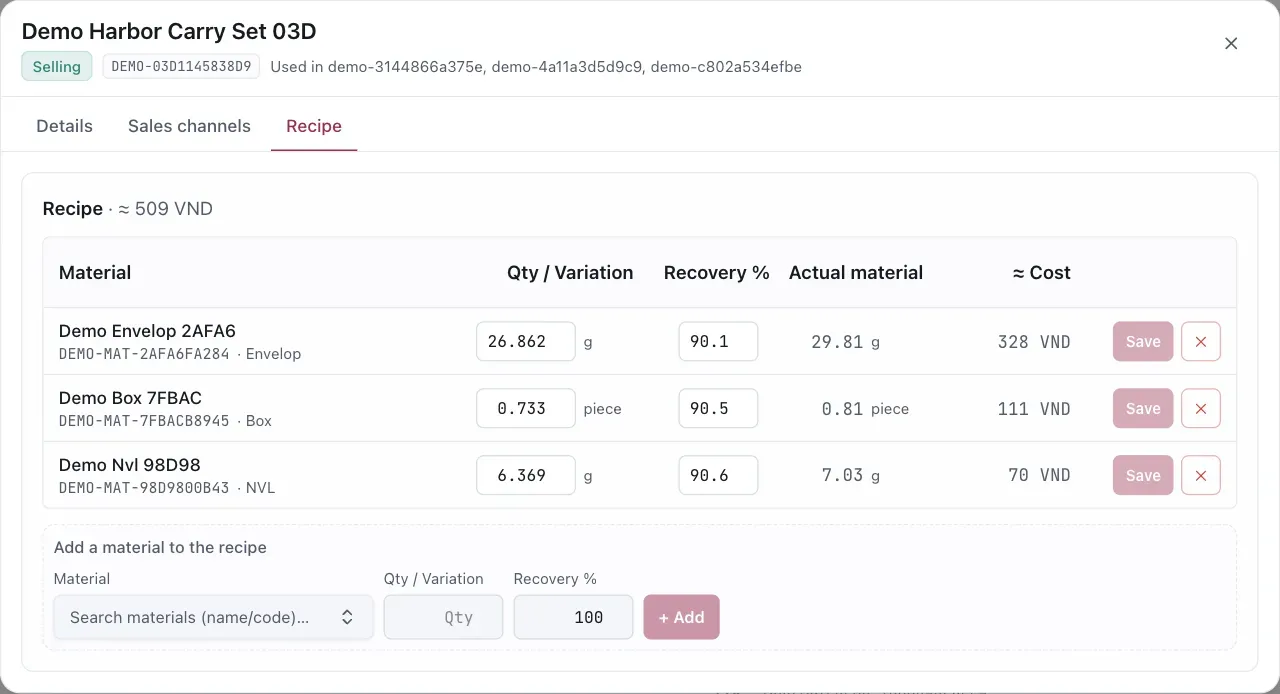
Recovery converts the recipe quantity into the actual material required for one variation.
You can select rows for bulk Mark for sale, Stop selling, or channel on/off actions. Stopping selling also clears that SKU’s declared sales channels; you can enable them again later.
Import the catalog
Section titled “Import the catalog”Choose Import CSV in Finished goods, download or prepare a file with the template’s headers, then
follow the App’s validate → preview → commit flow. Import upserts by sku_code; review failed
rows before committing. A bulk import changes reference data, so use it for catalog maintenance rather
than for marketplace inventory snapshots.
Inventory data tools
Section titled “Inventory data tools”Finished goods also exposes Upload inventory and Import history when your permission allows them. They are URL-backed views of the same page, so use Back to finished goods to return to the catalog table.
Upload inventory
Section titled “Upload inventory”The upload workspace shows one card per connected manual channel and separates Stock from Sales. For each card:
- Select Update stock or Update sales.
- Choose the snapshot/as-of date and use the CSV template or paste a spreadsheet table.
- For stock, provide
sku_code, warehouse, date, andon_hand. For sales, providesku_code, the marketplace, date, and the five windowss7,s14,s30,s60, ands90. - Preview the rows, correct validation errors, and commit. Refresh the page and check the freshness badge afterwards.
Walmart manual lanes represent WFS and TikTok manual lanes represent FBT. Amazon stock is read from SP-API; the upload view can show an Amazon stock panel for mapping or reconciliation, but it is not a replacement for the Amazon connection. Sales data can be missing, stale, aging, or fresh. A stale sales source is not used for planning until updated.
Import history
Section titled “Import history”Switch between Data and Batches:
- Data shows the time-series values. For On-hand, choose AWD, FBA, WFS, or FBT. For Sales, choose Amazon, Walmart, or TikTok, then choose one of the five windows.
- Batches shows when an import ran, its form and target, created/updated counts, and commit status. A committed batch can be rolled back when no later conflicting change prevents it; confirm the rollback prompt before proceeding.
The history view is for auditing imported values. Recalculate sales rates from Order Planning after a meaningful sales update so proposals use the new inputs.
Materials (manufacturing mode)
Section titled “Materials (manufacturing mode)”Materials are counted in their own stock unit (for example kg, piece, or box). The table shows
current stock, consumed quantity, purchased quantity, supplier, preferred price, recipe usage, and a
status such as Normal, Missing data, or Negative stock. Use search,
filters, and row selection to work in batches.
For a material you can:
- add or edit its code, name, type, unit, recovery percentage, active state, and on-hand quantity;
- add supplier offers with currency, price, and the material MOQ;
- set a preferred supplier or update stock for selected rows;
- import material master data through the same validate → preview → commit pattern.
The supplier’s order unit, supplier-level MOQ, and delivery lead time are configured separately in
/inventory/materials?view=purchase → Material Planning → Settings. Keep the material unit and the
supplier order unit compatible so the App can convert quantities safely.
Changing a material’s unit is a conversion of stored BOM, order, consumption, receipt, price, MOQ, and stock values. Review the conversion dialog carefully; incompatible data can require a new material code instead. Inactive materials or undeclared material codes are excluded from material purchase planning until corrected.
Settings used by Inventory
Section titled “Settings used by Inventory”Product Catalog exposes Supply setup for the manufacturing-mode switch. The full Planning settings dialog is opened from the Order Planning workspace’s Settings button; use it to configure the inputs used by the rest of Inventory. It separates:
- Sales channels — which channels are planned and whether their orders are included;
- Planning rules — default safety buffer and other planning defaults;
- Supply & lead time — production, packing, sea/air transit, AWD transfer, and review-cycle days;
- PO constraints — supplier production lead time and total-order MOQ;
- Ordering templates — reusable SKU or material baskets for recurring plans.
Save each changed area and close the dialog only after the App reports it saved. These settings are defaults: a SKU × channel buffer or a SKU carton specification can override them in the Finished goods details.
If Order Planning says data is missing
Section titled “If Order Planning says data is missing”Start here rather than changing a quantity at random:
- SKU is not in the grid: confirm the marketplace mapping, declared channel, and selling status.
- No sales rate: upload or sync the channel’s sales windows, then use Refresh in the Sales/week column.
- No inventory baseline: update the relevant warehouse snapshot or fix the channel mapping.
- Manufacturing proposal is blocked: check the carton specification, per-SKU MOQ, supplier MOQ, and the recipe/material warnings.
VendlenPrivacy PolicyTerms of ServiceContact
© 2026 HELODA PTE. LTD. Not affiliated with or endorsed by Amazon.