
Create a campaign
Create Campaign builds one or more campaign rows in a single run. Each row has one ad type, one
targeting pattern and one advertised product. Add up to 10 rows; Automatic Bulk can expand one
row into 2–20 independent Automatic campaigns within the overall execution limit.
Use it when you know exactly what you want. If you want a coordinated structure across several ad types or several ASINs at once, that is a Campaign Set — and it is the only route that offers templates and Product Groups.
1. Choose the ad type and product
Section titled “1. Choose the ad type and product”
Ad type, targeting pattern and product — the three choices that fix what the rest of the flow asks you.
The targeting pattern is chosen here, not later. Keyword Exact and Keyword Broad are two campaign rows, so you can add both before reviewing the run. See Sponsored Products, Brands and Display for what each ad type offers.
2. Choose targeting
Section titled “2. Choose targeting”Base bid and daily budget are set on this step too, alongside the targets.
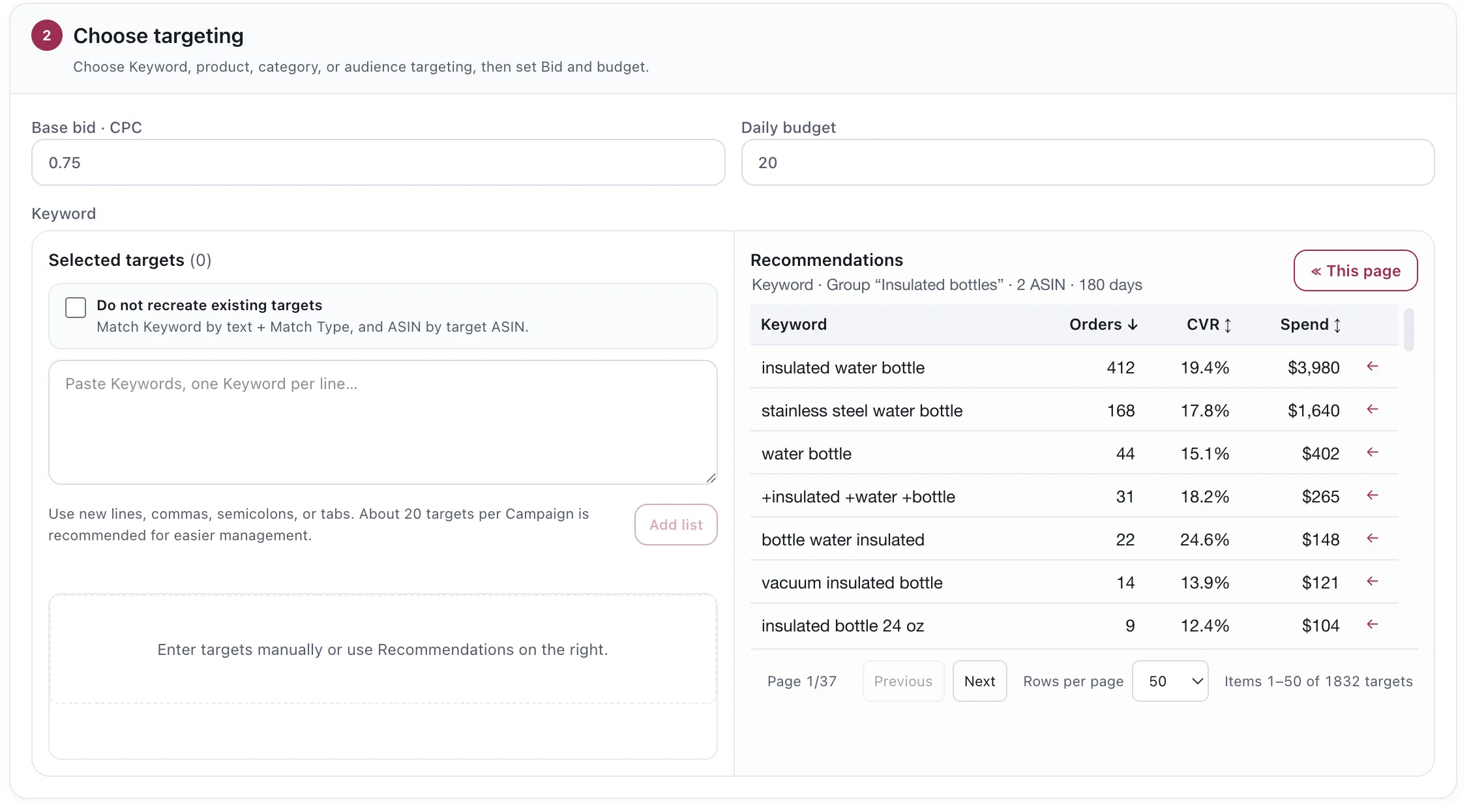
Recommendations carry orders, conversion rate and spend, so a keyword is chosen against evidence.
Two ways to fill the campaign, and you can use both:
- Recommendations, on the right. The App proposes keywords, categories and ASINs from the Product Group’s own advertising history. The arrow on a row adds it.
- Paste your own, on the left — one per line, or separated by commas, semicolons or tabs.
Do not recreate existing targets skips anything already running: a keyword matched on text plus match type, an ASIN matched on target ASIN. A campaign can carry at most 100 targets; the App’s recommendations are intentionally smaller so you can review them before sending.
On a Sponsored Display campaign
Section titled “On a Sponsored Display campaign”The same step asks a different question: contextual products/categories, remarketing scopes, or custom audiences instead of keywords. Choose an optimization strategy — Conversion at CPC, or Reach at CPM — for Sponsored Display.
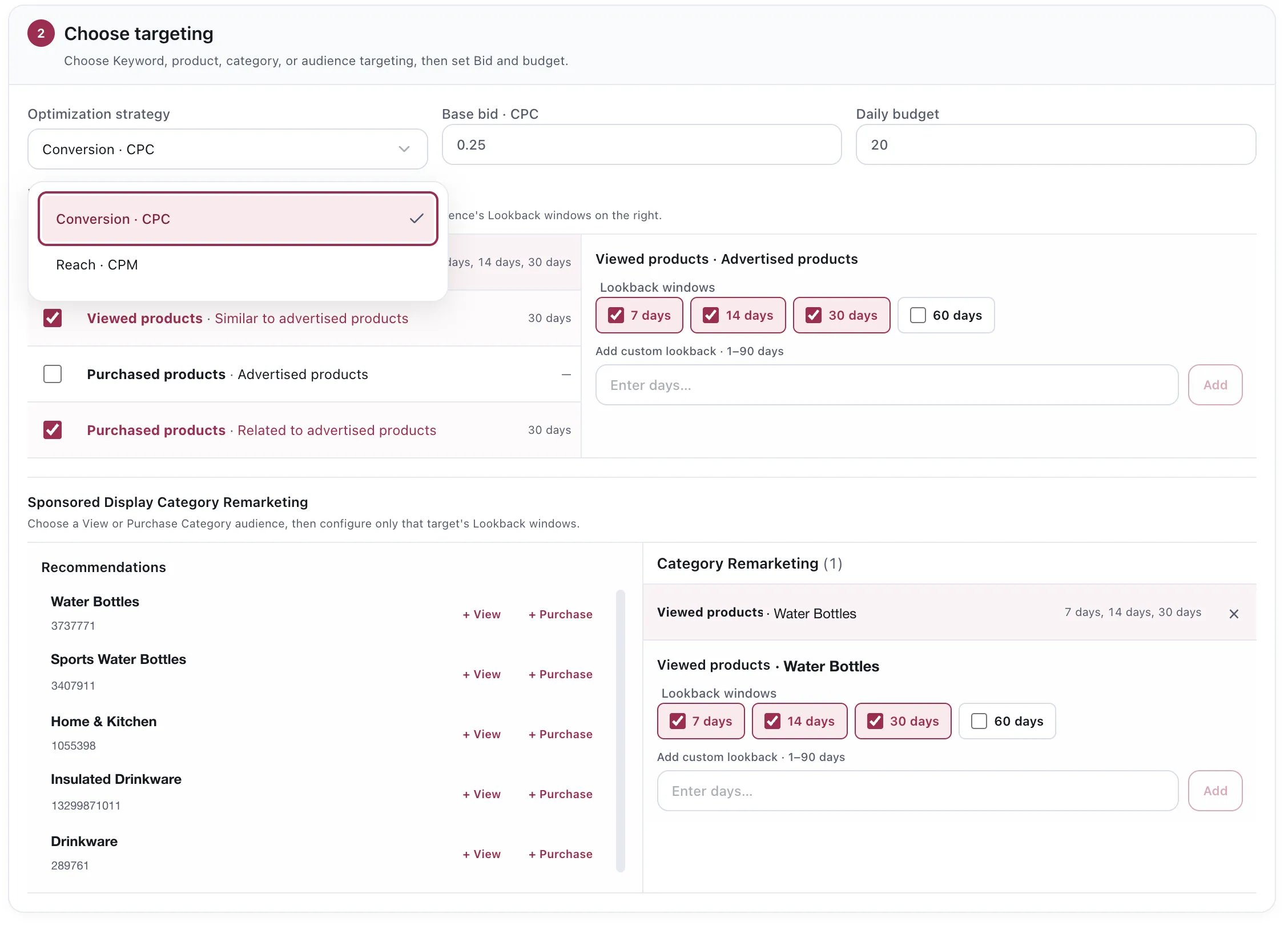
Each audience carries its own lookback window, and the same category can be taken as a view or as a purchase.
3. Prepare the creative
Section titled “3. Prepare the creative”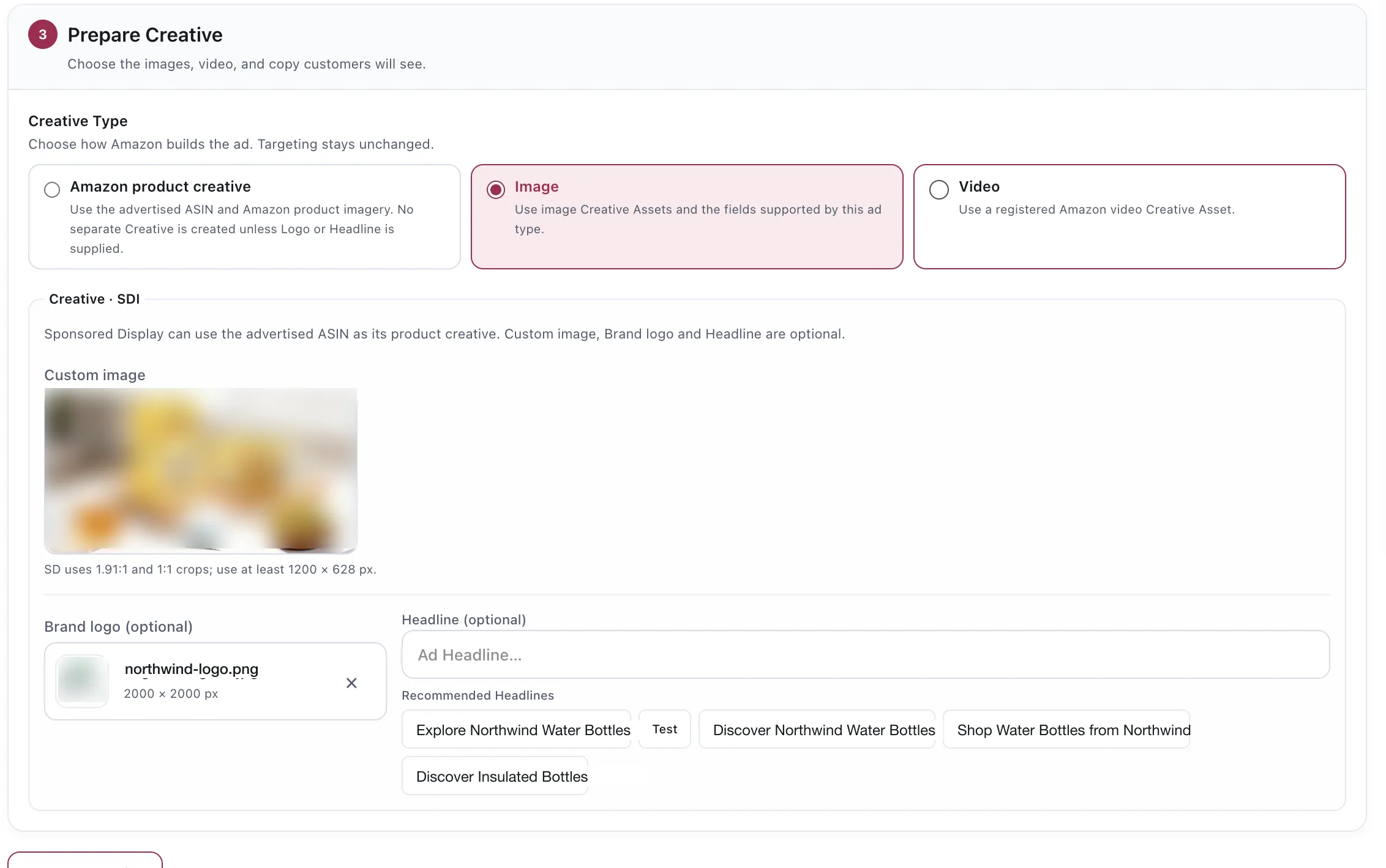
Recommended headlines are generated from the product; the field stays editable.
Creative Type decides how Amazon builds the ad, and changes nothing about targeting:
| Type | What it uses |
|---|---|
| Amazon product creative | The advertised ASIN and Amazon’s own imagery. Available for Sponsored Products and Sponsored Display |
| Image | Your image assets and whatever fields the ad type supports |
| Video | A registered Amazon video creative asset |
What the panel below asks for depends on the ad type and format. Sponsored Display can use Amazon product creative, a custom image, or video; Sponsored Brands has separate Collections, Store Spotlight and Video requirements. See Sponsored Brands.
4. Review and create
Section titled “4. Review and create”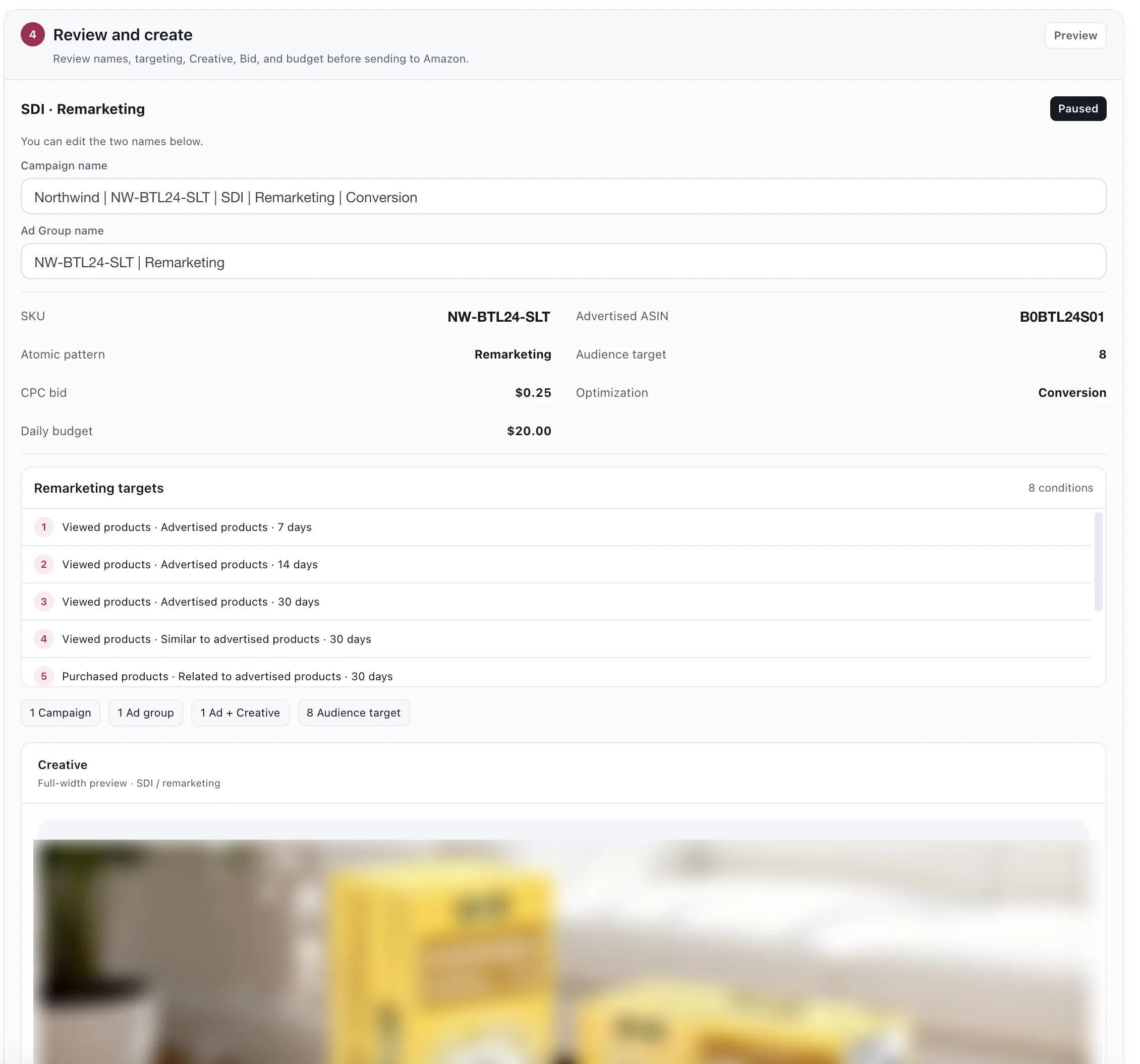
Each campaign row, its ad group, and every target it will carry, listed before anything is sent.
The campaign name and ad group name are editable here — the App says so on the step. Everything else on this screen is a read-back of what you chose.
Below the fields, the step counts exactly what it will write for the selected rows: Campaigns, Ad groups, ads/creatives and targets. It lists every target individually so a number is never the only thing you are trusting. Remove a row from the preview if you do not want to create it.
It is created paused. The status is marked on the step, so nothing spends until you enable it.
Considerations
Section titled “Considerations”- Each row has its own bid and daily budget. The total in the final review is the sum across rows and any Automatic Bulk expansion.
- If you lose the connection after confirming, check Action Center or Change History before retrying; retrying blindly can create duplicates.
- Everything created is recorded in Change History.
VendlenPrivacy PolicyTerms of ServiceContact
© 2026 HELODA PTE. LTD. Not affiliated with or endorsed by Amazon.